
Quick answer
In the correct cPanel account, open Security > SSH Access > Manage SSH Keys, import the public key, then choose Manage > Authorize. Import and authorization are separate actions. Leave the private-key field empty when your private key was created on your computer.
Before you start
Have the complete line from your local .pub file ready and confirm the account allows SSH. Use your own cPanel account, with the owner’s permission. A key does not enable shell access on a service that lacks it.
Import and authorize the public key
- Open the Client Area service for the domain and use Log in to cPanel. Confirm the intended service before continuing.
- Open Security > SSH Access > Manage SSH Keys. If the control is missing in a limited dashboard, ask support how to authorize your public key for that service.
- Choose Import Key. Give the key a recognizable name for the person or device. Paste the entire public line into the public-key field and leave the private-key field empty.
- Import the key, return to Public Keys, choose Manage for the imported key, and select Authorize. Check that its status becomes authorized.
- Compare the public fingerprint with your local record, then connect from your normal terminal using the matching private-key path and the account’s actual SSH host/port.
Public-key import example
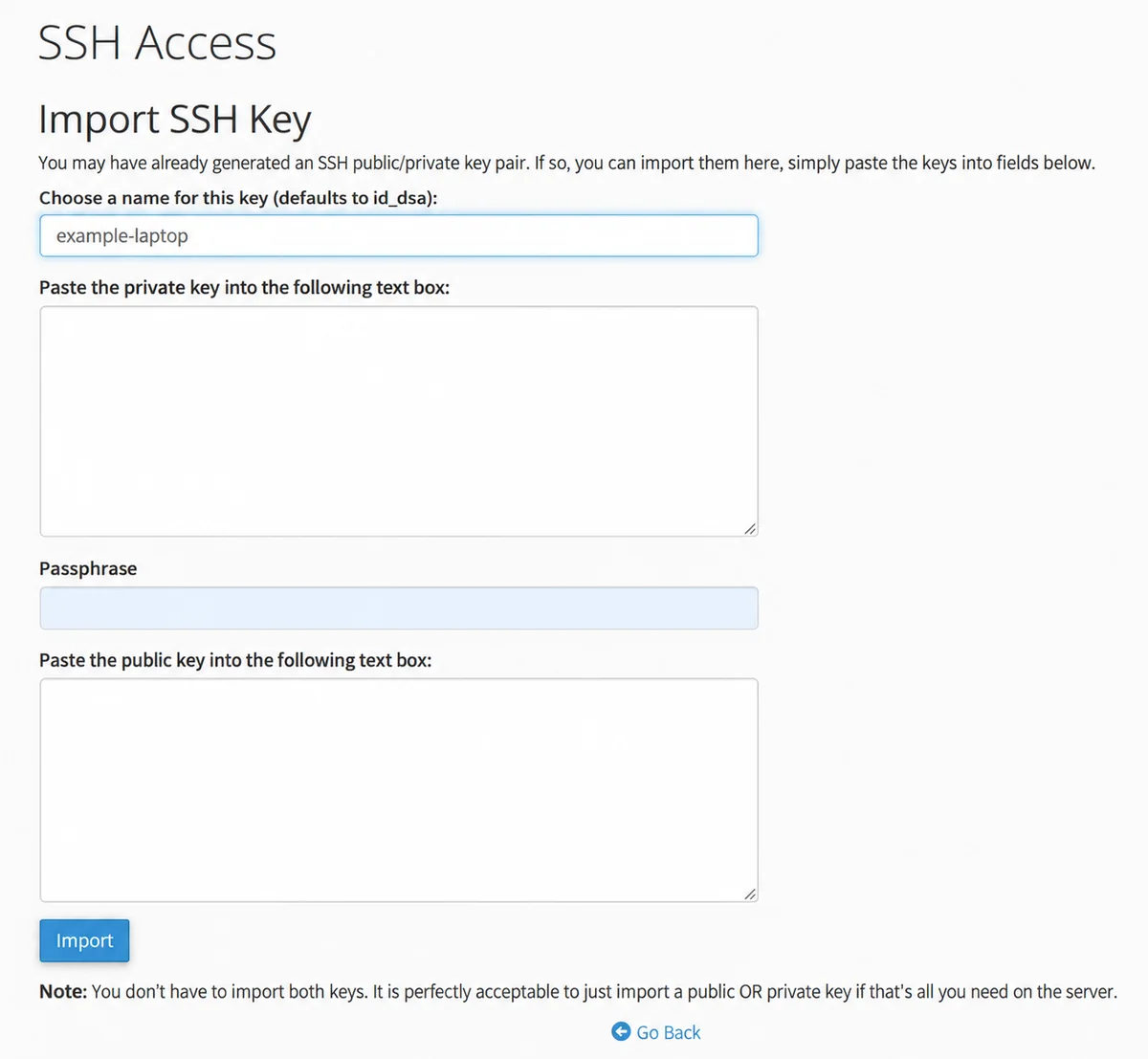
Privacy-edited example from the current cPanel interface. example-laptop is a sample device name. For a key generated on your computer, leave the private-key and passphrase fields empty and paste the complete .pub line into the public-key field. This example does not show a completed import or authorization.
Keep your private key on your computer. The cPanel form offers fields for both key types, but this workflow imports only your public key. Importing the key is followed by a separate authorization step.
Check the result
After login, run whoami and pwd. Confirm the cPanel account and home directory, then type exit. Test the connection before giving a coding tool a task.
If it fails
For Permission denied (publickey), compare the username, host/port, selected private key, and authorized public key. If you cannot find SSH Access or authentication still fails, provide support with the domain, service, timestamp and redacted error. Share a public key or public fingerprint only when needed; never send the private key or passphrase.
Related help
- Generate an SSH key on your computer for an AI coding workflow
- Create a local SSH alias for a website coding assistant
- Fix Permission denied (publickey) when connecting an AI coding tool
- What can I do if my hosting account has no SSH access?
Official references
Last content review: October 31, 2026. Check the version and features available in your own account.
