
Quick answer
Open cPanel > Domains and read the Document Root for the exact domain or subdomain you want to change. That folder is the upload destination. The SSH home directory and the main public_html folder are not the correct destination for every site in an account.
Before using SSH to inspect website folders, follow the local SSH configuration checks to review the resolved host, user, port and key path. A verified connection still needs the correct domain-to-folder mapping below.
Check the domain-to-folder mapping
- Open the hosting service for the domain in your Client Area and choose Log in to cPanel. Check the account before inspecting files.
- Open Domains and find the exact hostname. Review its Document Root entry. A main domain, addon domain, and staging subdomain can use different folders.
- Open that path in File Manager or SFTP. Compare its entry files and structure with the site you expect. WordPress commonly has wp-admin, wp-content, wp-includes, and index.php; a static site can have index.html, CSS, and assets.
- Record the absolute path and intended domain for your upload. For example, /home/CPANEL_USERNAME/public_html may serve the main domain while another site uses /home/CPANEL_USERNAME/staging. These are examples, not your account’s verified paths.
- Download a recovery copy before replacing files. Check for newer live edits and avoid moving an unfamiliar application to make room.
Read the domain and folder together
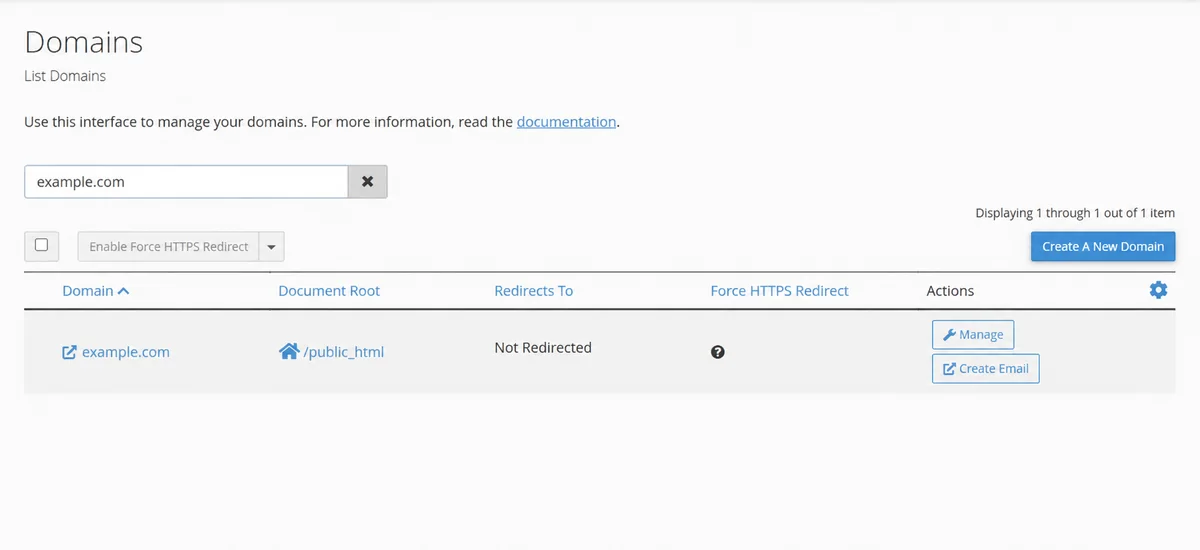
Anonymized example from the current ioc cPanel interface. example.com is sample data. Read the Document Root for your exact domain; a listed domain does not establish where public DNS sends visitors.
When the domain points elsewhere
Check the authoritative DNS provider and current destination. A domain listed in cPanel does not prove that public traffic reaches that account. Cloudflare can also sit in front of the origin. Resolve the intended hosting/DNS mapping before uploading.
Check the result
After the upload, read back a changed public file and open the intended HTTPS domain directly. Check another domain in the same account if the change touched a shared folder. Keep verification files harmless and remove temporary public diagnostics.
Ask support
Send the domain, service, folder you found, and the URL showing the wrong content. Do not send a session-bearing cPanel URL, password, or private key.
Uploaded files but old website still showing
- Open the exact hostname in Domains and compare its Document Root with the folder used for the transfer. Check the entry file's name, content and modification time. An extra parent export folder can put the new page one level too deep.
- Confirm that public DNS routes that hostname to the intended service. If a proxy is involved, identify its origin rather than assuming the public proxy IP is the hosting account's address.
- Review existing entry files before changing them. An application
index.phpand a newindex.htmlcan produce a different result from the one you expected; server configuration determines index priority. Preserve the working application and ask support if the replacement plan is unclear. - Once the correct file and destination are verified, refresh the relevant browser, application or CDN cache and reopen the exact HTTPS page. A cache purge cannot correct an upload into the wrong account or folder.
If the account contains more than one domain, verify that an unrelated site still works when a shared folder was involved. Send support the domain and folder evidence if the mapping remains unclear.
Related help
- How to log in to cPanel from your Interactive Online account
- Upload website files with SFTP: settings and secure connection
- Publish an AI-generated static HTML website to cPanel
- Find where your domain's DNS is managed before changing records
- Upload a reviewed file with cPanel File Manager
- Send a website support request with useful troubleshooting details
Official references
Last content review: October 31, 2026. Check the version and features available in your own account.
Customer troubleshooting and related-help review: November 1, 2026. Earlier review notes retain their original scope.
