
Quick answer
In File Manager, choose Settings, enable Show Hidden Files (dotfiles), and save. Open the correct website folder before inspecting .htaccess.
Applies to
Interactive Online customers with an authorized cPanel login and the relevant tool enabled. Confirm the hosting service and domain before changing files or settings.
Steps
- Open Files > File Manager and navigate to the intended site folder.
- Choose Settings near the upper-right corner, enable Show Hidden Files (dotfiles), and save.
- Look for the exact
.htaccessfilename. If editing, first save a recovery copy outside public web access and check whether WordPress or another application manages the relevant block. - After a deliberate change, check the affected URL, HTTPS redirects and another normal page. Restore the previous file if the change causes errors.
cPanel screenshots
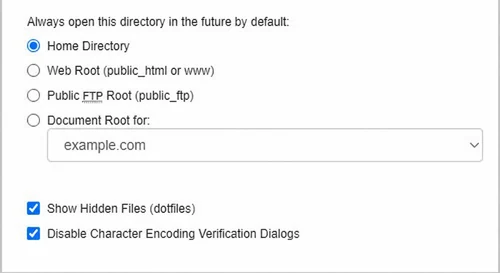
Anonymized example using example.com. In File Manager Settings, use Show Hidden Files (dotfiles) to display files such as .htaccess. Displaying a hidden file does not make it private.
Verify the result
Confirm the file appears in the directory listing. Hidden-file visibility only changes the listing; it does not protect a file from public access.
Troubleshooting and support
If .htaccess is absent, verify the folder and the application's needs before creating one. Do not upload private keys, environment files or downloadable configuration backups into the website. Contact support from the account that owns the service. Include the domain, the exact tool, the time and time zone, the last successful step, and a redacted error or screenshot. Leave passwords, private keys, cookies, and complete configuration files out of the ticket.
Related help
- Find the correct document root before an AI tool uploads files
- Upload a reviewed file with cPanel File Manager
- Fix website file permissions without making everything writable
Official references
Content and source review: November 1, 2026. Interface labels depend on the cPanel version and tools enabled for your service.
