
Quick answer
Use Backup Wizard or Backup to create the recovery copy your task needs, then download and protect it. A full-account backup and a partial home-directory/database backup have different restore procedures.
Applies to
Interactive Online customers with an authorized cPanel login and the relevant tool enabled. Confirm the hosting service and domain before changing files or settings.
Steps
- Open Files > Backup Wizard and select Back Up. Choose Full Backup or the required partial backup after checking available storage.
- For a full backup, choose the permitted destination, set an optional notification address if needed, and select Generate Backup. Wait for completion before downloading the completed archive.
- For a website-only recovery copy, ensure you have both its files and the correct database export. A home-directory archive alone does not establish that a usable WordPress database is included.
- Download the required archives over the secure account connection and retain an independent protected copy. Verify that the downloads are complete and readable. Record the website, date/time, contents and any exclusions.
Verify the result
Check the completed archive and database export, not only the job notification. Test a representative restore in an isolated environment before relying on the backup for a major change.
Troubleshooting and support
A full-account archive generally needs hosting-provider/WHM assistance for full restoration; the cPanel Backup Wizard restores supported partial backup types. Do not assume it can restore a full-account archive from a customer login. Keep archives outside public web access. Contact support from the account that owns the service. Include the domain, the exact tool, the time and time zone, the last successful step, and a redacted error or screenshot. Leave passwords, private keys, cookies, and complete configuration files out of the ticket.
Restore a supported partial backup
Before a restore, preserve the current destination and test the recovery copy in isolation. Backup Wizard > Restore offers supported partial types such as Home Directory or a database. Select the intended type, choose its matching partial backup file and follow the upload/result controls. Do not upload a full-account archive as if it were a home-directory-only backup. A restore can replace current files or data; a full-account restore needs the hosting provider's supported process.
cPanel screenshot
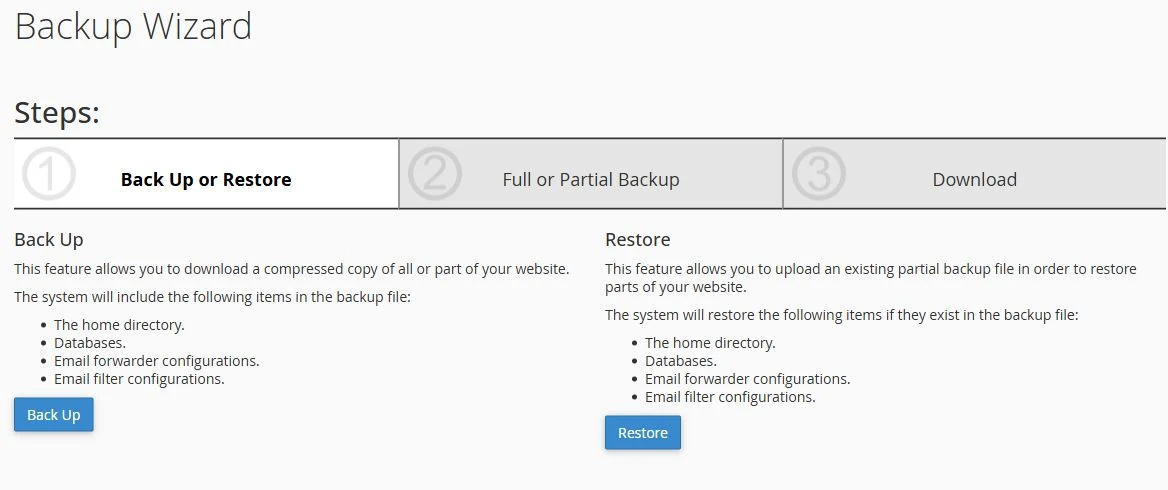
Original cPanel Jupiter Backup Wizard controls. Restore accepts supported partial backup types; a full-account restoration uses the hosting provider's supported process. This screenshot contains no account-specific values.
Choose a full or partial backup
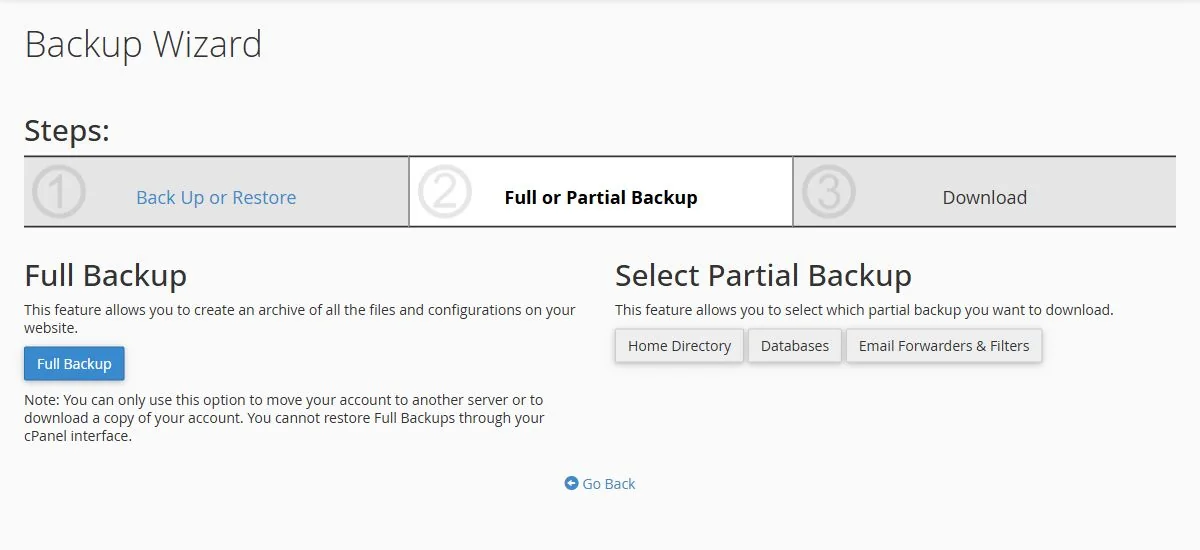
Current Backup Wizard controls in cPanel Jupiter. A full-account archive cannot be restored through the customer cPanel interface. Choose the backup type your recovery task needs; these controls do not show a completed backup or restore.
Video tutorial
The original video is preserved below. It demonstrates an earlier interface; use the current written steps when labels differ.
Restore deleted website files: identify the recovery type
For a recently deleted file, check File Manager Trash and selective recovery before considering an account-wide restore. For a changed file, use a known good copy of that file when it is sufficient. A full account archive, a home-directory partial backup and a database export have different restore controls.
Full backup restore in cPanel
The customer Backup Wizard cannot automatically restore a full-account backup. Ask Interactive Online support to confirm the supported process and required scope. For a supported partial restore, open Files > Backup Wizard > Restore, choose the intended restore type, select its matching partial file with Choose File, and use the displayed upload control. Preserve the current destination before proceeding. Do not substitute a full-account tarball for a partial archive.
If a backup or restore failed
Keep the original archive and exact error. Check whether the operation finished, whether the archive is complete and readable, whether storage is available, and whether its type matches the restore control. Do not repeatedly upload an uncertain archive over current data. For a database-backed site, confirm that the matching database and files are available and preserve newer business activity before agreeing to a restore.
Related help
- Check that a WordPress backup includes files and database
- Test a website restore without replacing the live site
- Store website backups outside public web access
- Preserve new orders and inquiries when planning a restore
- Send a website support request with useful troubleshooting details
Official references
Content and source review: November 1, 2026. Interface labels depend on the cPanel version and tools enabled for your service.
Customer troubleshooting and related-help review: November 1, 2026. Earlier review notes retain their original scope.
