
Quick answer
A supported Joomla MCP extension can expose website tools to ChatGPT or Claude through an authenticated connection. Review the extension and account permissions first, start with read-only access, then test one reversible draft before permitting publication. This is an optional third-party workflow, not a bundled Interactive Online custom connector.
Check compatibility and ownership
Cybersalt's MCP for J documents Joomla 5/6 support and OAuth sign-in for browser ChatGPT and claude.ai. Its core is free and some extension-specific add-ons are paid. Other extensions have different requirements. An older Joomla installation, a working Web Services API, or an external AI subscription alone does not establish that this connector is installed or ready.
Check the installed release before granting write access
The vendor's current source documentation identifies a permission limitation in version 2.10.0: several content and template tools still rely on MCP-specific permissions while per-item Joomla permission checks are being completed. Do not assume a Joomla role alone limits every exposed tool to the same items available in the normal editor.
Keep Options > MCP server > Read-only mode enabled during evaluation. Review the installed release, supported tool scope and relevant fixes before granting write access. Read-only mode still allows supported reads, so its available information also needs review. Do not connect an unrestricted administrator account to work around a denied action. See the vendor's current permission notes.
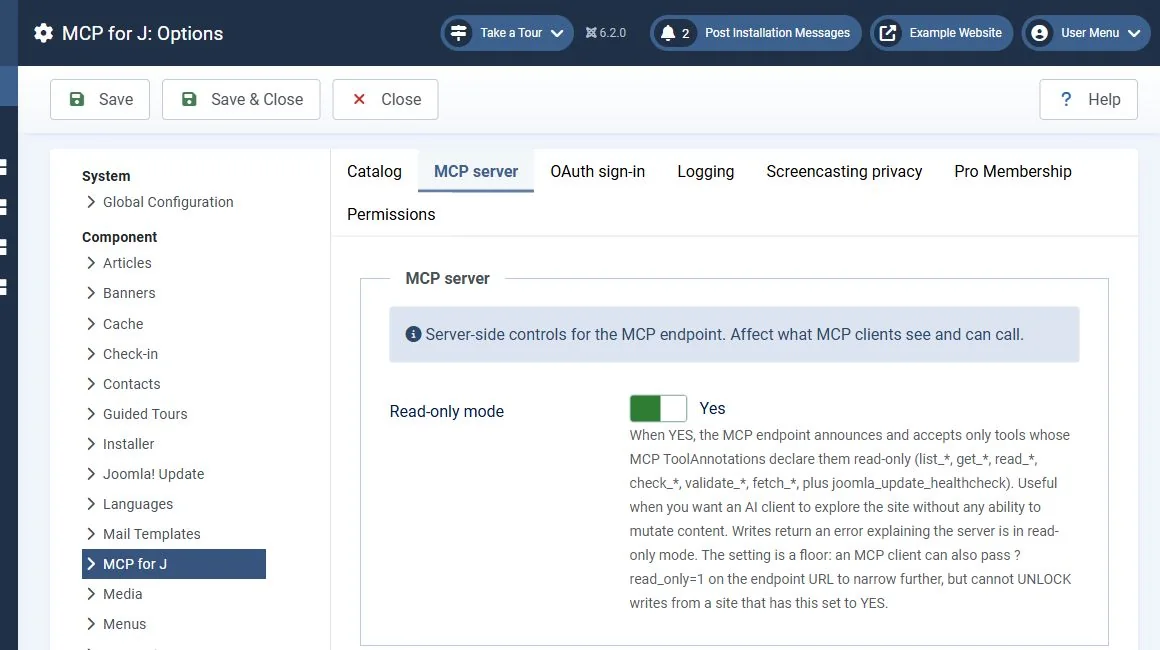 Read-only mode was checked on the isolated test installation. Review the installed release and permissions before considering write access. Open the image for a larger view.
Review before installing or connecting
- Confirm the Joomla version, website owner, editor/page builder, hosting requirements, and a recoverable files/database backup.
- Review the publisher, source, update policy, exact tools, authentication, and data processing. Grant only the tools needed for the intended content task.
- Use a dedicated appropriate Joomla account. Follow the extension's documented API login and Use/Write permissions. Avoid making a content editor a Super User to bypass a failed permission check.
- Use an approved existing staging environment for the first write and recovery test. Do not install or enable an extension on a live business site merely because a chat asks you to.
Connect through the supported sign-in flow
- If the owner approves installation, use the vendor's authentic package and Joomla's normal extension installer. For MCP for J, open Components > MCP for J and inspect its Dashboard and setup guide.
- After the release and permission review, enable the documented OAuth sign-in option only within the approved configuration. Use the exact endpoint provided by the extension; do not guess it or expose an unrelated private service.
- In the AI application's current custom MCP/plugin or connector interface, add that endpoint and complete the real website authorization screen. Workspace policy can restrict the feature.
- Enable only the intended connection for the conversation. Ask which website, identity, and read-only tools are available. Confirm the returned site before proceeding.
Use only this approved Joomla connection. Identify the site, account permissions, and article with the ID I provide. Read its title, alias, publication state, language, and modified time. Explain which tools could update a draft and reverse that update. Do not write, publish, delete, install extensions, or change users or permissions.
Verify a limited change and revoke access
On an approved draft, preserve the original fields, review a tiny proposed revision, apply it, read it back, preview it, and restore the original fields. Confirm that the account cannot edit an unauthorized item or publish when it lacks that permission. Check the extension's operation log without exposing credentials. Disconnect the AI client and revoke the website-side authorization when finished, then confirm a new request no longer has access.
Common problems
- Connection cannot authenticate: verify HTTPS, endpoint, OAuth setup, API login permissions, and workspace restrictions.
- A page-builder layout is unsupported: inspect the specific add-on and its version/license. Core article tools do not automatically understand every builder.
- A request hits a security challenge: ask support to assess the exact endpoint and response. Do not disable site protection broadly.
- The AI can see too many tools: reduce the role, tool permissions, or connection scope before allowing changes.
When to contact support
Contact Interactive Online if the hosting destination or available account tools are unclear. Include the affected URL, service name, time and time zone, exact error, and a screenshot with private details replaced by sample data. Keep passwords, private keys, API tokens, customer records, and billing information out of the message. Your external AI provider handles its subscription and usage limits.
Related help
- Edit Joomla content without a connector
- Connect Claude to an approved remote service
- Connect ChatGPT to an approved remote service
- Review the proposed access
- Use an advanced Joomla coding workflow
Official references
- MCP for J publisher documentation
- SP Page Builder add-on requirements and permissions
- ChatGPT custom MCP setup
- Claude remote connectors
Reviewed November 2, 2026. MCP for J 2.10.0 options checked on an isolated Joomla 6.2.0 installation with read-only mode enabled and OAuth disabled. Remote authorization, write denial and revocation remain unverified.
