
Quick answer
Ask ChatGPT or Claude to prepare a specific Joomla content revision, then apply it in the existing article or page-builder editor. A compatible, approved MCP connection can automate supported actions; ordinary chat alone has no access to your Joomla Administrator.
Applies to
Interactive Online-hosted Joomla sites with an authorized content-editing account. Match the installed Joomla version and editor. A standard article, a Custom module, and an SP Page Builder page have different editing paths. Older Joomla versions may not support current connector extensions.
Prepare one content change
- Record the public URL. In Joomla Administrator, open Content > Articles and find the corresponding article. Confirm its ID, category, publication state, language, access level, and alias.
- Identify whether the visible section is the article body, a module, a template override, or a page-builder layout. Preserve the editing system already responsible for it.
- Keep a recoverable copy or supported article version. Give the AI only the approved public wording and a clear task. Keep configuration.php, API tokens, user exports, and private content out of uploads.
Prepare replacement text for one existing Joomla article. Improve the introduction and add three short service descriptions using only the facts below. Keep the article title, alias, menu routes, language, and publication state unchanged. Return clean text, or simple editor-compatible headings and paragraphs if I request HTML. Do not add scripts, forms, tracking, or invented claims.
Apply text and image changes
- Review the returned copy and place it in the correct article/editor field. Avoid pasting a complete HTML document into an article body.
- Use the editor's image control or the site's Media interface to choose an approved image. Check its relative path, crop, alternative text, caption, and any link. Intro and full-article images may be configured separately from body images.
- Preserve the alias, category, language, access level, publication dates, and menu association unless the task deliberately changes one.
- Use the available preview or approved nonpublic workflow, then Save or Save & Close when approved. Read the public page back and check its formatting and image.
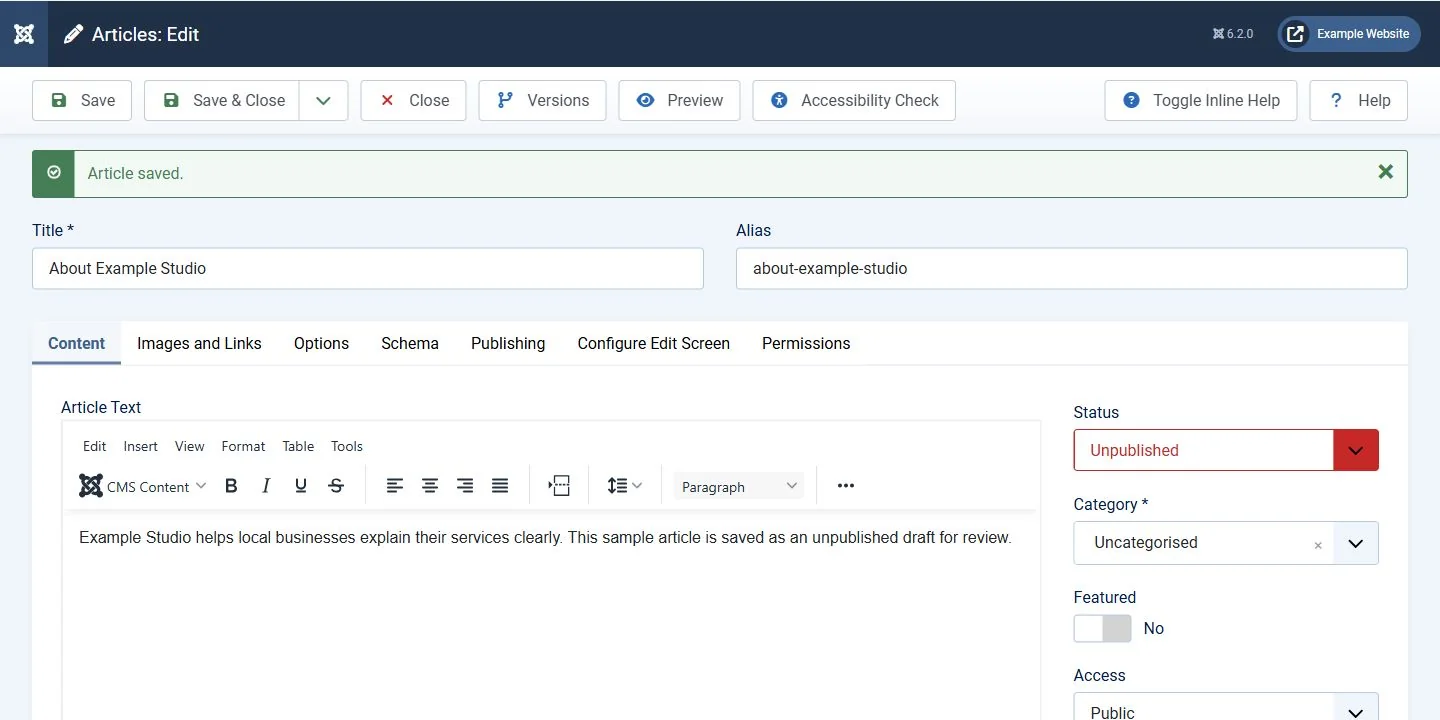 Joomla 6.2.0 sample article. Keep the alias, category, access and publication state while revising the body. Open the image for a larger view.
Check the current Joomla article and image controls
- In Content > Articles, open the intended article. The current editor shows Title and Alias above the tabs, with Status, Category, and Access in the main options.
- Use Images and Links for separately configured Intro Image and Full Article Image fields. Choose the correct image, then enter its Image Description (Alt Text) and optional caption.
- Choose Save and wait for Article saved. Reopen the image tab and check that the intended file, description and caption were retained.
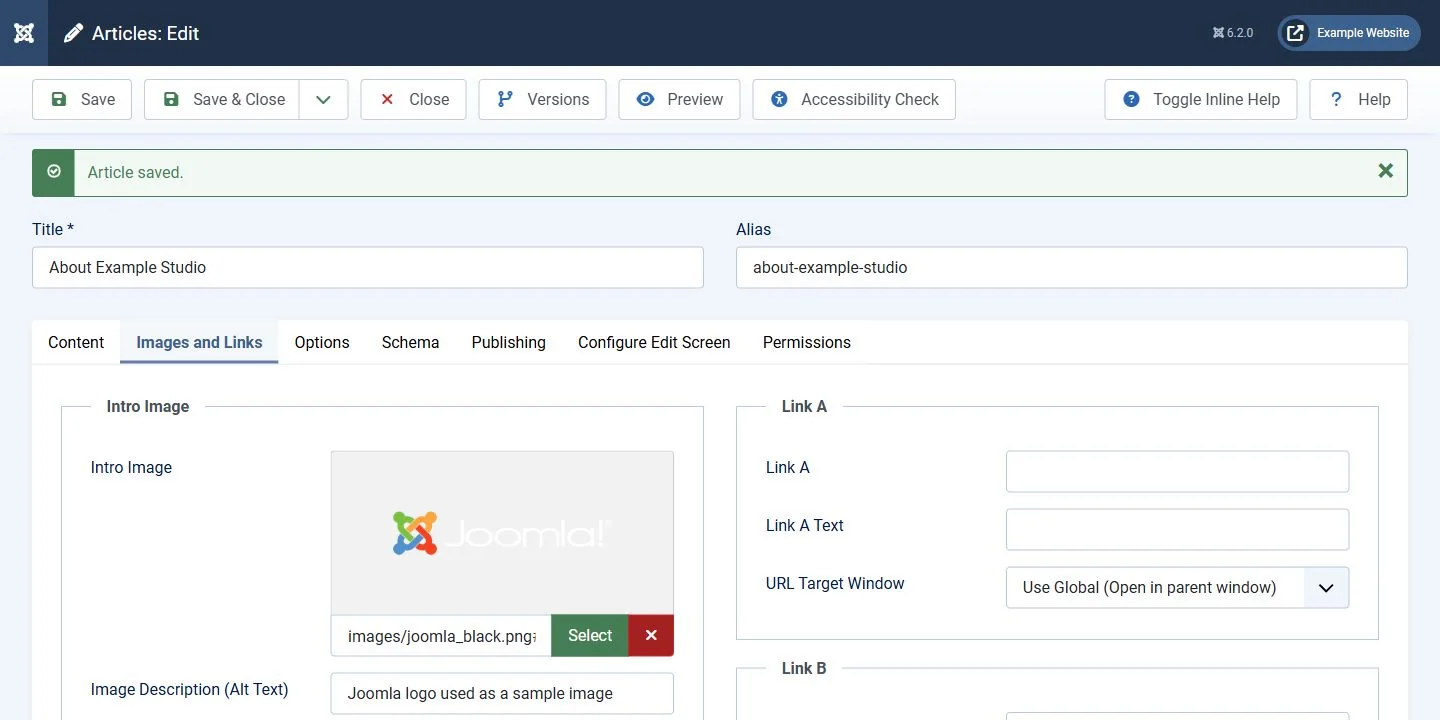 Intro and full-article images have separate settings. Review Image Description (Alt Text) for the image that the page uses. Open the image for a larger view.
Add or change a menu link
Open Menus and the intended menu. For a link to an existing article, use the site's supported Articles > Single Article menu-item type and select the correct article. Check parent item, alias, language, access, and publication. A new menu alias can change the public route, so retain an established URL when the task is only to revise wording.
Restore a saved Joomla article version
- Before the change, use Version Note to identify the approved copy, then save it. Version history must be enabled and retained for this route to be available.
- If recovery is needed, choose Versions, inspect the date, note and author, and select the intended saved version. Use Preview or Compare where needed before choosing Restore.
- Read the restored article and verify its alias, category, access, language, publication state and images. A version can restore fields beyond the body text.
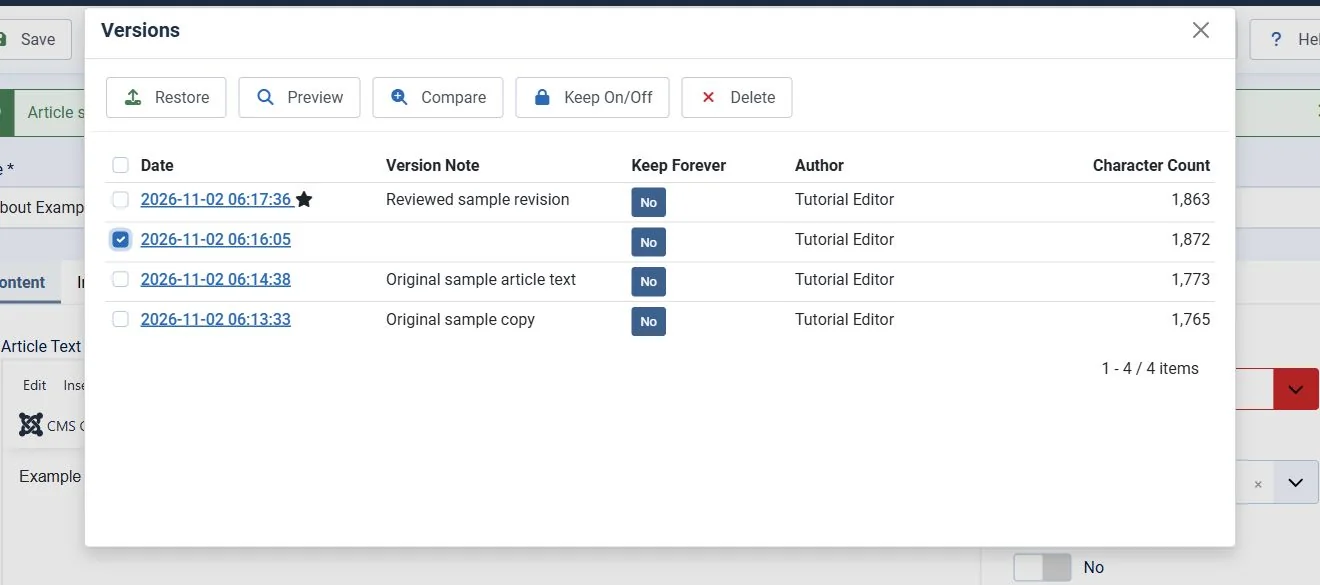 Choose the intended saved version. Restoring a version can also restore its saved image and other article fields. Open the image for a larger view.
Connected editing and troubleshooting
- You want the AI to apply changes: evaluate an approved connector, its supported Joomla/editor versions, account role, and exact tools. Start with a read-only identification of the site and article, then a reversible draft. Publishing requires your separate decision.
- The wrong page changes: inspect the menu item's target and whether a module or page builder owns the visible content.
- The old image or wording remains: verify the saved item, language/menu route, and the relevant Joomla/CDN cache.
- You need to undo the change: use available article version history or the verified selective backup. Do not replace the whole database for a small copy correction.
When to contact support
Contact Interactive Online if the hosting destination or available account tools are unclear. Include the affected URL, service name, time and time zone, exact error, and a screenshot with private details replaced by sample data. Keep passwords, private keys, API tokens, customer records, and billing information out of the message. Your external AI provider handles its subscription and usage limits.
Related help
- Edit an article while preserving Joomla URLs
- Link a Joomla menu to the correct article
- Advanced Joomla coding workflow
- Understand an approved Joomla MCP connection
Official references
Reviewed November 2, 2026. Joomla 6.2.0 article, image description, menu target and saved-version restoration checked on an isolated sample installation.
