
Quick answer
Give the AI your existing brand rules and ask for a small change to fonts, colors or spacing. Apply it through the style controls or source files that own the design, then check every affected page.
1. Identify the editing route
- WordPress block theme: use Appearance > Editor > Styles when available. Global changes can affect many pages.
- Elementor: identify the editor version. Its Site Settings can define global colors and typography; element-level settings may override them.
- Divi: check whether a style comes from a preset, variable or individual module. A shared preset change can affect all its uses.
- Joomla: open System > Templates > Site Templates Styles. Available options depend on the template; select the assigned site style.
- HTML: edit the maintained CSS/source project. Keep generated build output separate from its source.
- Nova: edit the existing project through its supported tools on your eligible Meridian service. Preview before republishing.
2. Request one change
Keep a backup or revision and use a preview/staging copy. State whether the change applies to one component or the whole site. Use existing licensed fonts and approved colors.
Example: style one service card
On the Example Garden Services preview, improve this service card only.
Keep its font family, text, brand colors and estimate-button URL.
Use a 24px heading, 16px body text and consistent 16px gaps as a starting point.
Check readable contrast and phone wrapping; adjust if those values fail.
Preserve shared presets, variables and other pages.
Show each changed value and how to restore it.
Record the original values first. Apply the example in the style control or CSS rule that owns this card. Verify another card is unchanged, open the estimate link and restore the recorded values if the shared design changes. The example values are a starting point, not a rule for every website.
3. Apply and verify
- Inspect the proposed settings or CSS. Avoid unrelated template rewrites, new font services or plugin installs.
- Apply the smallest change. Check shared components and at least one other page using the same style.
- Check headings, text wrapping, buttons, hover/focus states and images at narrow and wide widths. Verify contrast and zoom separately from visual preference.
- Save only the approved revision. Reopen the native editor and test the published page and links.
If the style does not change
Check local overrides, the assigned template/preset and cached CSS. If unrelated pages change, restore the affected global setting and use a scoped style. Send support the page, editor/version, expected result and a redacted screenshot.
Example
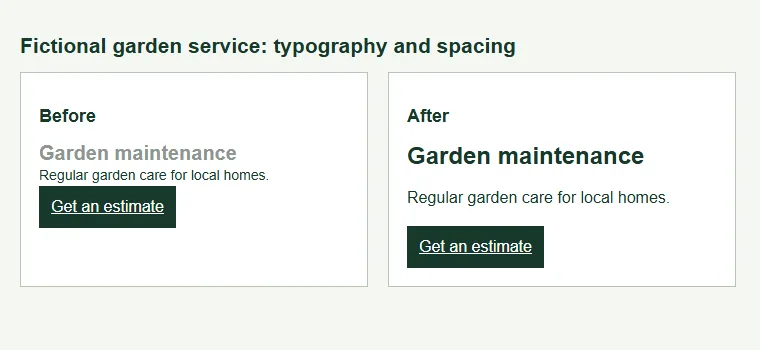 Original fictional HTML example. Open the image for the full-size comparison. Test your own editor and contact action separately.
Related help
- Write an AI website editing brief
- Find the editor used by a WordPress page
- Edit an Elementor page with AI and supported MCP tools
- Edit a Divi 5 page with the Divi AI Agent
- Review AI website changes before publishing
Official references
Written and primary-source review: Interactive Online, November 3, 2026. Editor controls depend on your version, theme and permissions.
