
Quick Answer
Choose a logo mockup that matches the intended use, editable file format and permitted project scope. Confirm the required software, linked assets and license before using it. Review the logo in a plain presentation as well: a dramatic material effect can hide problems with the underlying mark.
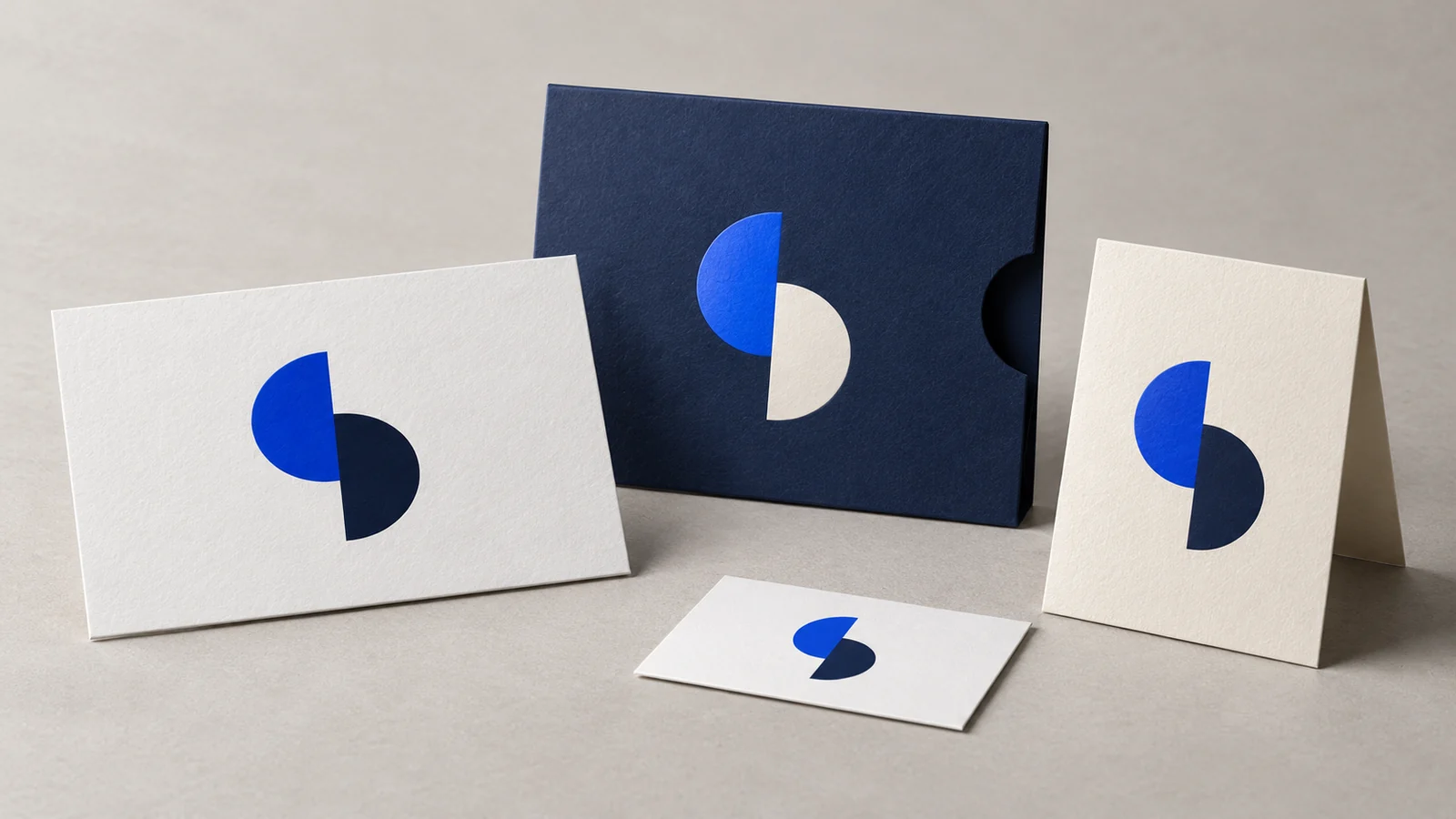
A mockup helps someone imagine a design on a card, package or sign. It does not establish that the logo works at small sizes, can be manufactured as shown or belongs to the person presenting it.
Find examples, then evaluate the actual template
The original Design Shack logo-mockup collection can be a starting point for browsing different presentation types. Treat the publisher’s roundup as an index. Check the current provider page for each item rather than assuming a title, download link, price or license remains unchanged.
Do not download every attractive preview. First decide whether the review needs stationery, packaging, a flat digital presentation or a particular physical application.
Check the file and editing workflow
- Format: Confirm whether the deliverable is a layered PSD, vector file, flattened image or another format.
- Software: Verify the application and version needed, including any plugins.
- Editability: Check which artwork, colors, backgrounds and effects can actually be changed.
- Dependencies: Identify linked images, fonts and other assets supplied separately.
- Output: Confirm that the resolution and crop suit the presentation you intend to export.
In Photoshop templates that use Smart Objects, Adobe’s editing instructions explain modifying the source contents and saving them to update the document. Follow the template’s actual structure. A preview image alone does not prove that a template includes an editable Smart Object.
Keep the permission record with the asset
Have the responsible owner confirm the permitted project, client use, attribution and any limits on sharing editable files. Keep the source page, license record and acquisition date with the project.
Check the logo and template separately. A permitted mockup does not supply rights to a sample brand displayed in its preview. Likewise, buying a template does not automatically permit redistributing its source files as a resource download.
Review the design beyond the scene
Start with the mark on a plain light and dark background. Check small display, recognizable shape and relevant color variants. Then use an appropriate mockup to discuss placement, scale and context.
Illustrative review: A logo looks convincing in a large embossed scene but loses its fine detail when used in a small website header. Keep the website-size problem visible in the review instead of accepting the design because the mockup looks polished. This is a demonstration scenario, not a client project.
Label conceptual applications clearly. A proposed sign or package image should not be presented as a photograph of completed work.
Prepare the website version separately
Use an appropriate logo asset for the actual header, footer or interface. A photograph of a mockup usually is not the logo file the website needs. Check sizing, contrast and responsive behavior in the real layout.
Our WordPress image preparation guide explains placement and delivery decisions. During a website redesign, include the required brand files and their usage notes in the content handoff.
Key Takeaways
- Choose a presentation that answers the design question.
- Verify file format, editable components and dependencies.
- Preserve permissions for both the template and the logo.
- Test the plain mark and its actual website use alongside the mockup.
Frequently Asked Questions
Does a free mockup allow commercial client use?
Check that item’s current license. Price alone does not describe the allowed project, attribution or redistribution terms.
Is a mockup image suitable as the website logo?
Usually the website needs a separate clean logo asset suited to its layout. The mockup is a presentation of a possible application, not a replacement for the underlying artwork.