
Quick Answer
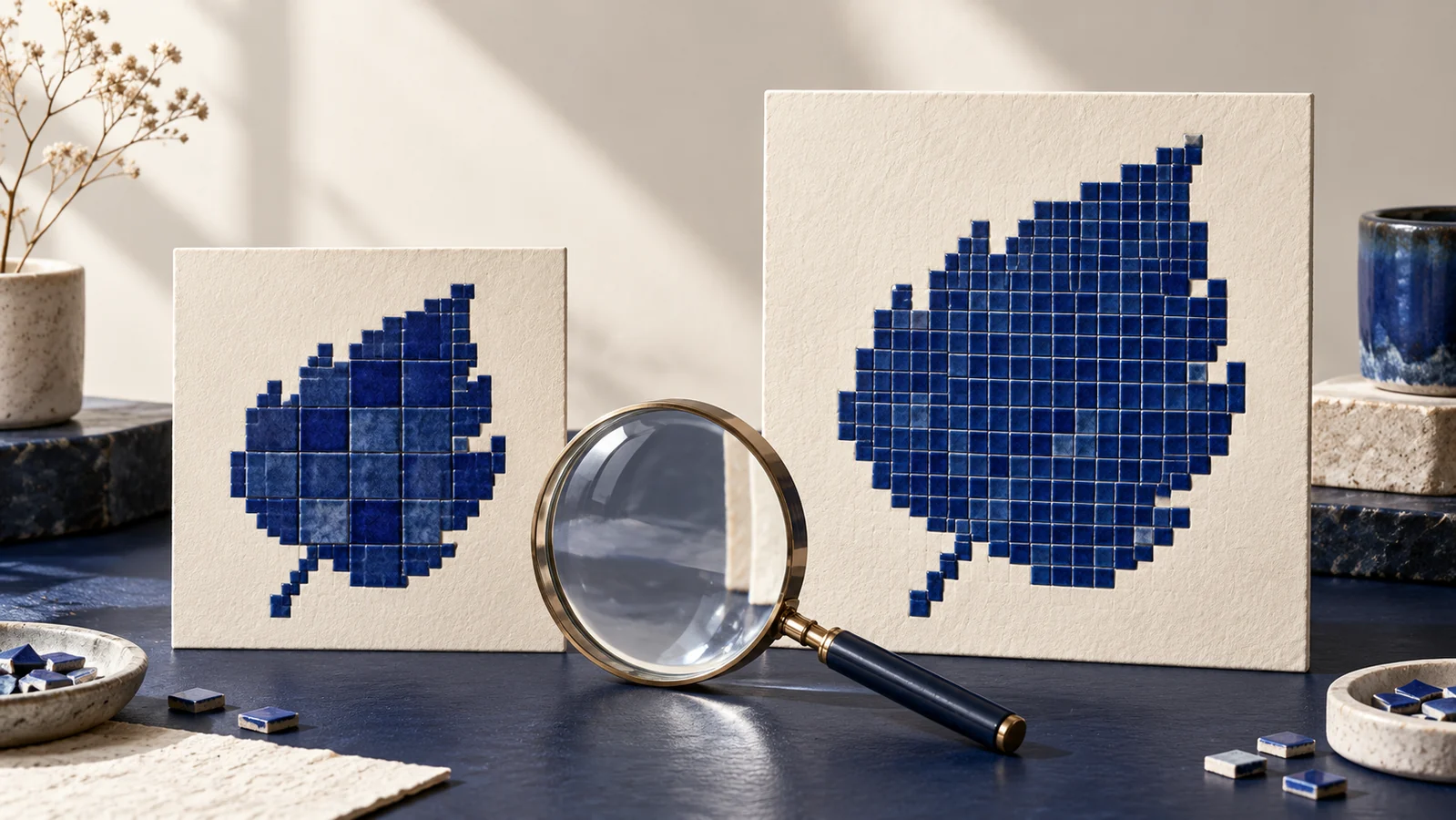
To upscale an image with AI, preserve the original, set the pixel dimensions needed for its actual placement and process a separate copy. Inspect important details against the source before exporting. A larger file can look more defined without providing reliable evidence of details the original did not capture.
Upscaling is useful when you need more pixels from an available image and cannot obtain a better source. It should be a deliberate enlargement task, not an automatic treatment for every website upload.
Start with the best available source
Look for the original photograph, illustration or export before enlarging a compressed thumbnail. Confirm that you may use and process it in the chosen tool. Keep the source file intact and identify the intended use, especially if the image represents a real product, property or completed project.
For a small web placement, ordinary resizing may already meet the requirement. If the problem is an incorrect crop or an oversized download, upscaling addresses a different issue. Our WordPress image-size guide explains how to define the placement first.
Choose the target dimensions
Record the required width, height and aspect ratio. For example, enlarging a 600-pixel-wide image to 1200 pixels doubles its width; it does not prove that the added detail is accurate. These are illustrative dimensions, not a recommended size for every image.
In Gigapixel, the current Upscale documentation describes choosing a scale factor or setting custom width and height. It also distinguishes cropping to change the ratio. Follow the documentation for your installed version rather than relying on an older screenshot or model list.
Process a copy and compare the result
- Open a working copy and record the source dimensions.
- Set the target dimensions and a suitable processing option for that image.
- Preview a region containing meaningful detail before processing the complete file.
- Compare the result with the source at a consistent viewing scale.
- Export a separate file and inspect that exported version again.
Review both the full composition and difficult details. Look for altered lettering, repeated textures, unnatural edges, changed faces or product features. A sharpened appearance is not enough if it changes information the visitor relies on.
Keep an unaltered comparison available during review. If a detail cannot be verified, do not present an invented-looking result as a more accurate record. A smaller honest image, another permitted photograph or a new capture may be the better choice.
Prepare the accepted image for the website
Once the enlarged working version passes review, prepare delivery files for the intended layout. Check the crop, format, compression and visible detail together. Enlarging a source does not require serving that largest file to every visitor.
Retain a short record of the source, tool version, dimensions and changes. If another editor needs to reproduce or revise the image later, that record is more useful than a filename that simply says “enhanced.” For choosing a broader editing workflow, see our AI photo editor evaluation guide.
Key Takeaways
- Find the best source and define the target placement first.
- More pixels do not establish more accurate detail.
- Compare the source, preview and exported file before use.
Frequently Asked Questions
Can AI upscaling recover the exact missing detail?
Do not assume that it can. Inspect the result against reliable reference material when accuracy matters, and reject changes that misrepresent the subject.
Should I upscale every image before uploading it?
No. First check whether its existing dimensions meet the layout’s needs. Unnecessary enlargement adds work and may introduce unwanted changes.
Is a larger exported file automatically better for SEO?
No. Prepare useful, accurate images for their real placements and verify the delivered page. Pixel count alone does not establish image quality or search performance.
A website audit can help determine whether an image problem comes from the source, crop or delivery template.