
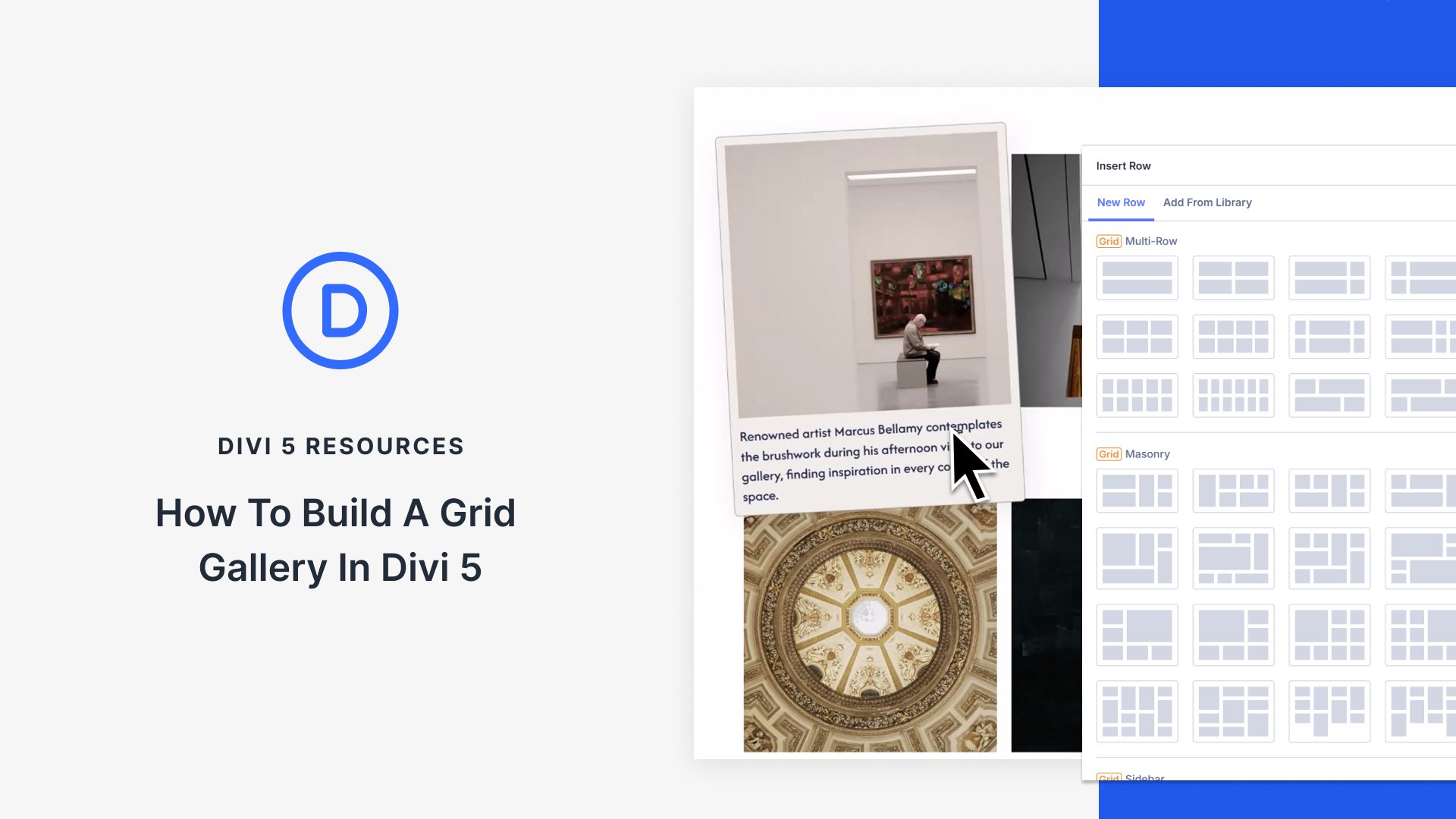
Create Stunning Image Galleries with Divi 5’s Grid Features
Divi 5 brings you the tools to craft beautiful image galleries with ease. Whether you’re using the Gallery Module for quick setups or the CSS Grid controls in the Visual Builder for more freedom, building responsive and interactive designs is now simpler than ever. The grid system in Divi 5 manages structure and design, turning your images into a polished presentation that works seamlessly on all devices.
The Visual Builder’s CSS Grid integrates while a module is placed inside sections or rows. Each element becomes a part of the grid, allowing both vertical and horizontal arrangements. With responsive grid settings, you can alter layouts based on device type, ensuring your gallery looks great on desktops, tablets, and mobile phones.
To start, choose your grid from a variety of designs like Masonry, Sidebar Style, or Portfolio Grid. Add images easily and decide on spacing that complements your aesthetic—tighter for compact layouts or wider for minimalist styles. Divi 5 also empowers you to expand and customize your gallery with interactive features. Text labels, hover effects, and even image links can be seamlessly added.
For those wanting more, Divi users can leverage advanced settings, like grid offsets, to create unique layouts that stand out. Make your galleries not just decorative but functional with presets and interactions, easing the design process across your site.
Enhance your site design by building your grid gallery using Divi 5. Discover how Divi can make WordPress Themes functional and stylish.
Key Takeaways
- Responsive Grids: Divi 5’s grid system enables both vertical and horizontal layout arrangements.
- Customizable Layouts: Choose from various templates and tweak spacing to fit your style.
- Interactive Galleries: Add captions, hover effects, and interactive elements to engage users.
- Advanced Controls: Utilize grid offsets for creating standout gallery designs.
- Presets for Efficiency: Save time with reusable presets for consistent styling.
Frequently Asked Questions
How do you add a grid to a page in Divi 5?
To add a grid, select the blue "+" icon and choose from the available grid templates. Then, insert your desired images or modules.
Can I adjust the grid layout for mobile devices?
Yes, Divi 5 allows you to adjust grid settings specifically for mobile, ensuring readability and user experience on smaller screens.
What are grid offsets and how do they help?
Grid offsets allow you to control the placement of specific images within the grid, enabling unique and creative layouts.
Is coding required to use Divi 5’s grid features?
No, Divi 5 is designed to provide powerful design tools without the need for coding.
Where can I learn more about Divi Themes?
Explore more about Divi Themes for enhancing your site’s design capabilities.