
Quick Answer
Divi Dash gives authorized users a central place to review updates on connected WordPress sites. Use its individual site dashboard to identify available changes and apply the items you have approved. Theme and plugin automation needs its own policy. Keep recovery, compatibility decisions and checks of visitor functions in the maintenance process, even when the update controls are in one dashboard.
A central update queue is useful when you maintain several WordPress sites. It also makes the selected site and selected items worth checking carefully. A routine plugin update on one site and a major platform change on another need different decisions.
This guide covers an operating workflow for Divi Dash. For the broader division of duties, see maintenance versus managed hosting responsibilities.
Confirm the site and the work allowed
Use an account authorized to manage the intended website. Check the domain, environment and access before making a change. A staging copy and the public site may look similar in a site list.
Confirm that connecting the site to Dash is approved and that the person managing the account can recover access. Read the current account terms for availability and permissions. This guide does not establish a subscription entitlement or recommend sharing a personal login with several people.
Keep the site’s update policy nearby. It should identify work allowed without further approval, changes needing a test copy, and who responds when a change fails. The WordPress automatic update guide covers those decisions.
Review the update queue
Elegant Themes documents the individual site view in its Divi Dash Website Dashboard guide. After a site is connected, open the Dash tab in the Elegant Themes account and use that site’s Dash icon.
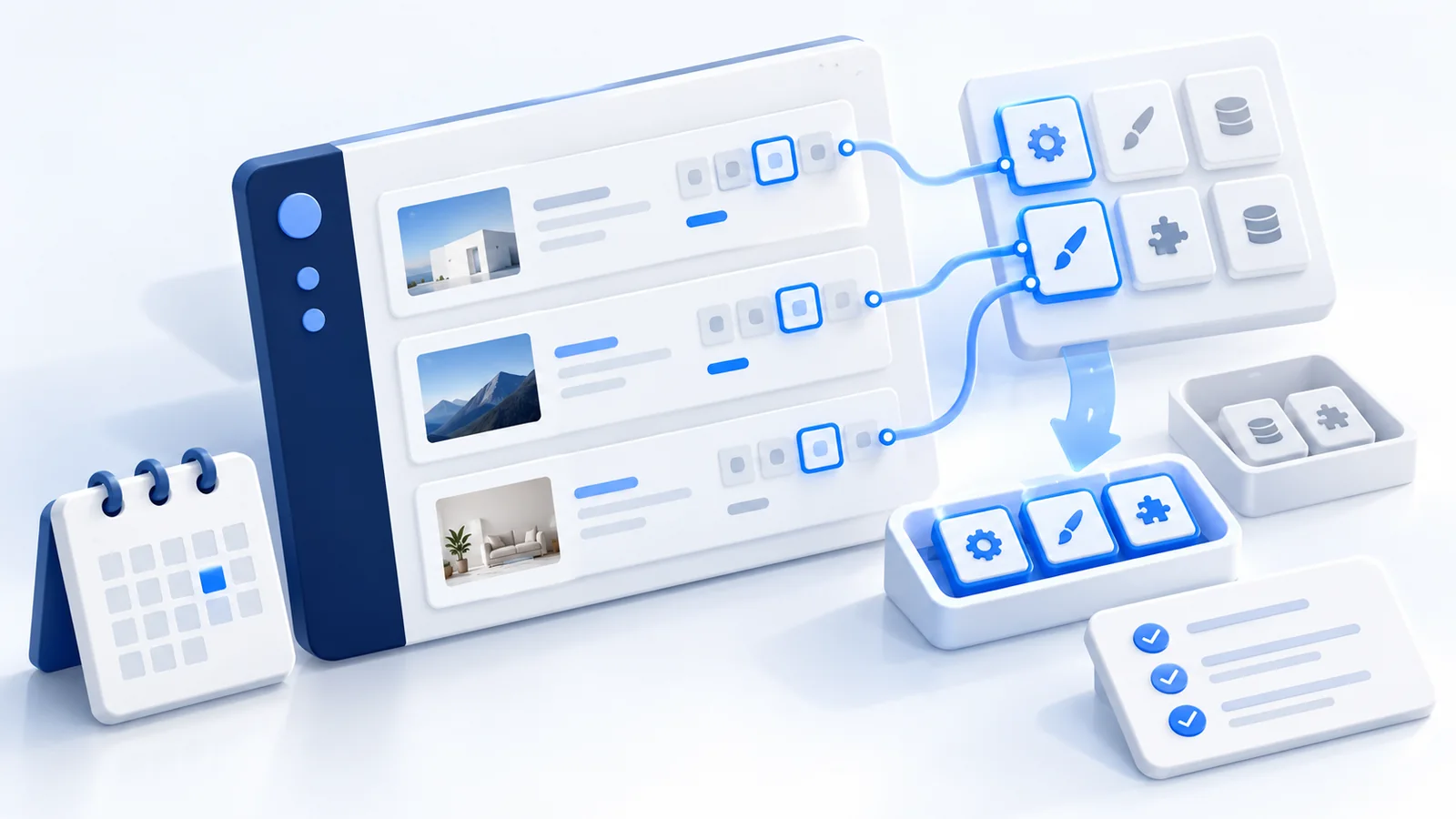
The Updates card separates the combined site queue from plugin, theme and WordPress core views. The site details also include a Sync Site Data control. If information appears stale, confirm synchronization and compare it with the authorized WordPress installation before acting.
Read release notes and relevant compatibility notices for the items under review. Record dependencies such as a child theme, paid module, custom form integration or store extension. A queue says an update is available; it does not decide whether a dependent feature has been tested.
Apply selected updates
Agree on the batch before starting. Separate changes when that will make it easier to identify a problem. A major Divi migration deserves its own plan rather than being treated as another routine item in a multi-site queue.
- Confirm the intended site, the approved update items and a usable recovery point.
- Open the appropriate Updates tab. Select the individual items authorized for this change.
- Check the selection again, then use Update Selected.
- Review the reported outcome. Compare versions on the site if the result is unclear.
- Check the visitor functions affected by the change and record any exception.
The vendor’s dashboard documentation also describes selecting all available items. Use that scope only when the whole batch has been assessed. Convenience alone is not a reason to combine unrelated changes.
Arrange recovery through the site’s actual hosting or backup process. Do not infer a full backup, a restore test or a compatibility guarantee from the presence of an update button.
Set the scope of automation
The documented Themes & Plugins card includes an Auto Updates tab with theme and plugin controls, schedule settings and item selection. Confirm the resulting settings for the actual connected site before relying on them.
Review WordPress core policy separately. The presence of manual core updates in the Updates card does not establish that the theme/plugin schedule governs core changes too.
Avoid conflicting policies across Dash, WordPress and the hosting platform. Identify which system performs which updates and where failures are reported. Keep a named person responsible for notices and post-update checks.
Handle other dashboard tools separately
Dash also exposes functions beyond updating, including user management, plugin or theme activation and deletion, and cleanup tools. Treat those as separate changes with an identified purpose and approval.
For example, removing revisions can remove a useful content recovery option. A cleanup control is not evidence that the data is unnecessary. Likewise, changing a user or deactivating a plugin can affect access or a business function even when no software update occurs.
The status report can help document the environment for support. Share only relevant details through a trusted support route, and keep credentials and private customer information out of general notes.
Record results and unresolved work
Close the task with the site, date, versions changed, reported result and functions checked. If a change was postponed, record the reason and the next review owner. A list of pending updates needs decisions, rather than an unexplained backlog.
Use the maintenance work plan for recurring checks beyond software. If a feature fails after an update, the update incident guide explains how to collect a useful timeline and diagnostic evidence.
Key Takeaways
- Verify the site and authorized change before using a central dashboard.
- Use selected updates when the approved work covers only part of the queue.
- Keep theme/plugin automation and WordPress core policy explicit.
- Maintain separate recovery arrangements and check visitor functions after changes.
- Give deletion, activation and access changes their own review.
Frequently Asked Questions
Does Divi Dash replace a maintenance plan?
It provides management controls. The maintenance plan still needs to assign decisions, recovery, functional checks and work outside those controls.
Should I select every available update?
Select the items included in the approved change. Review dependencies and testing needs before combining updates, especially for sites with custom functionality.
Can I assume Dash’s theme and plugin schedule also updates WordPress core?
Confirm core policy separately. The cited dashboard documentation distinguishes manual core updates from the theme and plugin automation controls.
What if Dash reports a successful update but a form fails?
Document the affected function and change time, then follow the agreed investigation and recovery process. An installation result does not verify every connected function.
If several people use management tools on your site, define their responsibilities in a website care plan so update schedules, notifications and repair work have clear owners.