
Quick answer
Build the form in Ninja Forms > Add New, review Emails & Actions, save it with Publish, and embed it on the intended page. Check a controlled submission and actual email receipt. If Ninja Forms email is missing, examine its email action and the delivery path separately.
Applies to
Use an authorized WordPress account on your Interactive Online website with permission to manage the selected form. Ninja Forms is a third-party plugin. Installing an add-on, creating an account or choosing a paid template can have separate requirements. Keep real customer submissions and notification recipients private.
Create or edit the correct form
- Preserve a current site recovery copy and record the existing form and embedding page. If the plugin is already installed, use its existing dashboard. For an approved new installation, select the official Ninja Forms plugin through WordPress's Plugins > Add New Plugin controls.
- Choose Ninja Forms > Add New. Start with a suitable included template or a blank form. Add clear field labels, required-field rules and only the information the request needs. Paid integrations require the appropriate add-on and account.
- Open Emails & Actions. Inspect the active notification, which may be named Admin Email or Email Notification. Check its recipient, subject and field mappings. A recipient using the WordPress administrator-email merge tag can differ from the contact address displayed on your website.
- Use the site's approved sending service and an authorized sender identity. Put the visitor's validated address in Reply-To when supported. A visitor-controlled From address can fail domain authentication. Keep SMTP credentials in protected configuration.
- Review whether Record Submission is enabled and appropriate for the information collected. Decide who may read submissions and how long they should remain. Email delivery and stored submissions are separate outcomes.
- Select Publish to save the form. For an existing embedded form, this can change the live form immediately. Use its preview when available, then add the supported form block or shortcode to the intended page. Saving a new form does not automatically embed it.
Ninja Forms email missing after submission
If the form says success but no email arrives, confirm the email action is active and its recipient/subject are valid. Compare the saved submission, when enabled, with the email action. A saved entry or success message does not establish that the mail provider accepted or delivered a notification.
Follow the website notification investigation using one controlled submission time and recipient. If ordinary incoming mail fails too, use the missing-message checks. Do not repeatedly submit real customer information or install a logging plugin that exposes it merely to diagnose delivery.
Verify and request support
Check required-field errors, a complete sample submission, the form's narrow-screen layout and actual notification receipt. Verify Reply-To behavior without exposing customer data. For help, provide the form/page URL, plugin version, relevant action name, timestamp/time zone and redacted error. Do not attach a full submission export or SMTP password. Follow the support-request guide for the escalation.
Preserved video
This original tutorial remains available. Its screens may differ from current versions; use the written instructions for the current workflow and confirm the controls in your own account.
Current plugin screenshot examples
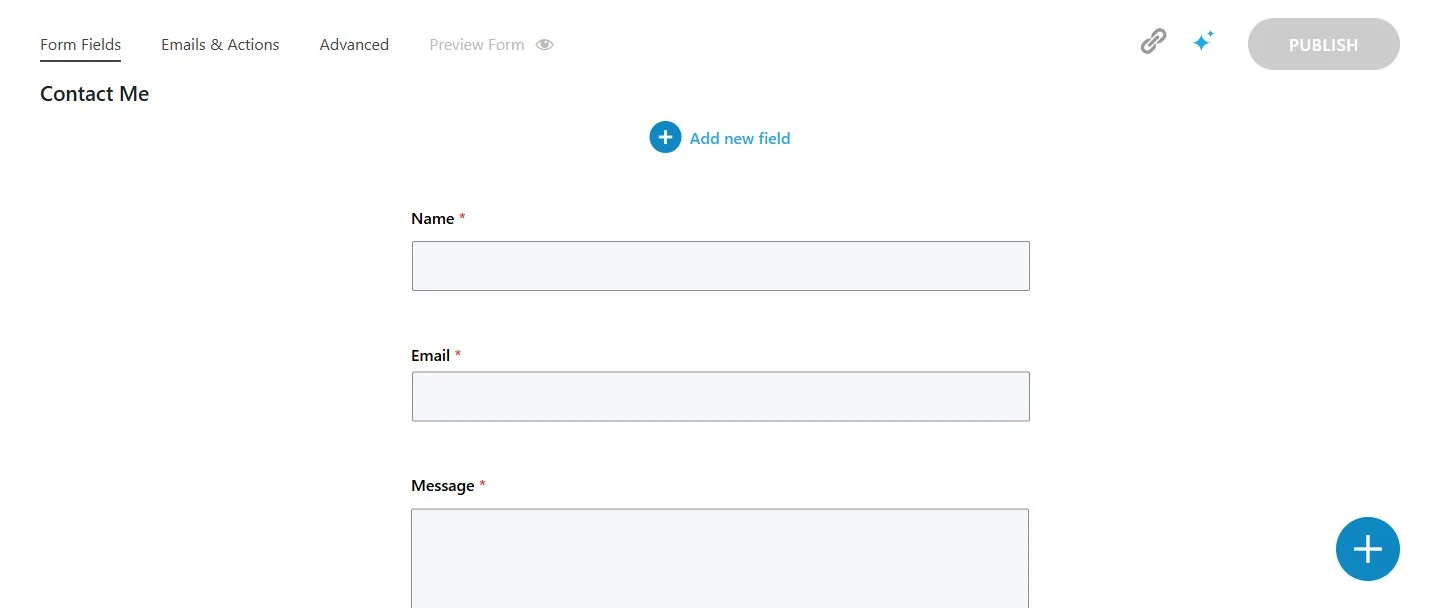 Ninja Forms 3.15.7, sample Contact Me form. Review Emails & Actions before publishing changes. Publishing saves the form; it does not embed it on a page. View larger screenshot
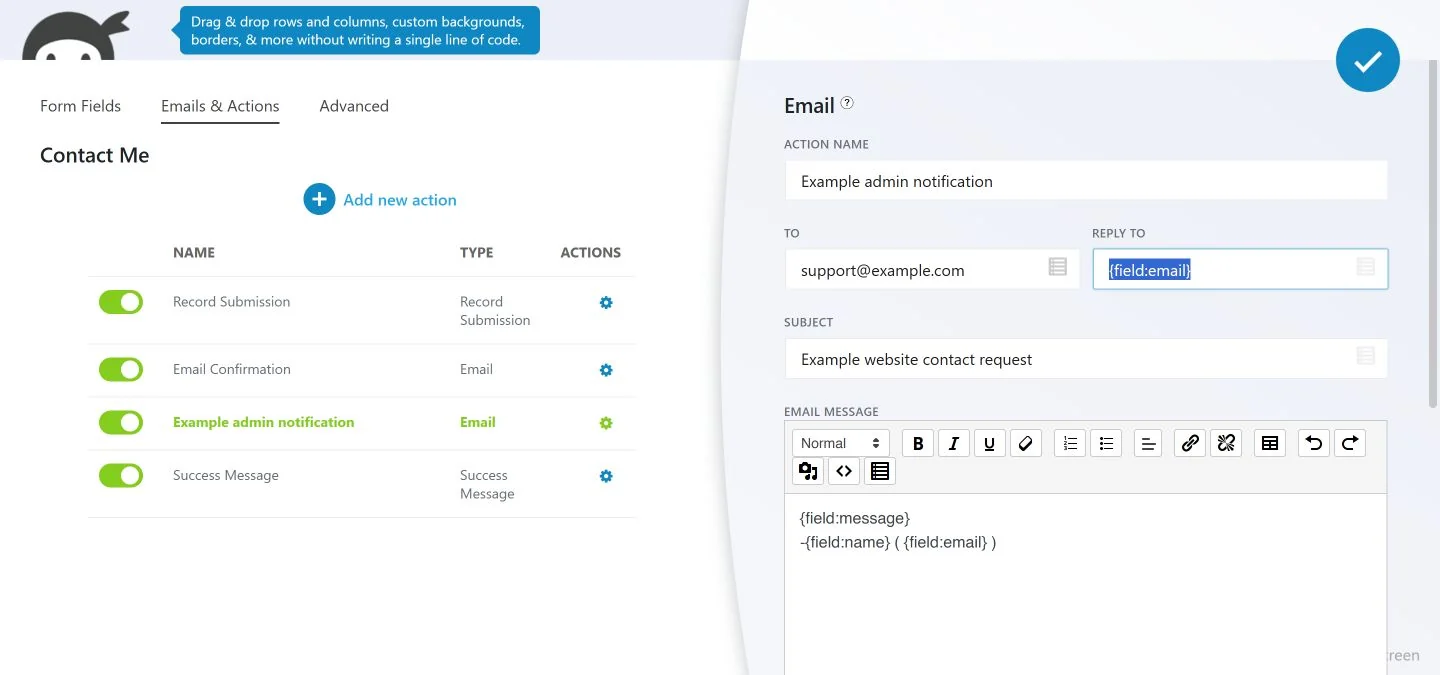 Sample notification in Ninja Forms 3.15.7. support@example.com is fictional. Use your authorized recipient and sending service; the Reply To field can use the visitor email field. View larger screenshot
Related help
- Make website form notifications use an authorized mail path
- Change a WordPress contact-form field and its saved notification mapping
- Collect useful evidence when an email message is missing
- Update a WordPress plugin with a clear rollback plan
- Send a website support request with useful troubleshooting details
Official references
Content and official-source review: November 1, 2026. Menu names, features and permissions depend on your installed version and service.
