
Quick answer
Configure W3 Total Cache for the caching services your hosting account actually supports. Review Performance > Setup Guide and Performance > General Settings, change one feature at a time, and verify public and signed-in behavior. Keep customer-specific pages out of shared page caching.
Applies to
This guide covers an authorized WordPress administrator on an Interactive Online cPanel website. Caching backends, server-level caching and plugin features differ by service/version. A Redis or Memcached option in a plugin menu does not establish that your account has that service. Stores, memberships, booking systems and personalized pages need their own cache rules.
Prepare a reversible change
Keep a current files-and-database recovery copy and record the active cache plugins, host cache and any CDN. Preserve the plugin's current configuration using its supported export or a private settings record. Avoid running multiple overlapping full-page cache plugins. Confirm that the content problem is not an upload into the wrong domain folder.
Review the setup and general settings
A first visit can open the Setup Guide. Review its optional usage-data request. If you intend to configure settings manually, use the available skip control; skipping does not test a cache backend or confirm that a configuration suits your website.
- If W3 Total Cache is already installed, inspect its existing settings first. For an approved new installation, use the official plugin listing through Plugins > Add New Plugin. Check compatibility with the site's existing performance tools.
- Open Performance > Setup Guide if the installed version provides it. The wizard offers page/database/object-cache tests and other options. Those tests can temporarily exercise the website, so use an appropriate window and review each proposed choice.
- Under Performance > General Settings, choose a supported page-cache method for this account. A shared-hosting disk method can be appropriate when supported; it is not a universal setting for every server. Ask support when the available backend is unclear.
- Leave advanced database/object caching unchanged until its backend and benefit are established. Minification, deferred scripts and CDN integration are separate changes. Enabling all of them together makes a broken form or page harder to diagnose.
- Use the plugin's preview controls when available. Save one reviewed change, clear the affected cache through the plugin's own controls, and inspect the result. A saved settings screen is not performance or functional proof.
- Check cart, checkout, account, login and other private/dynamic routes against the application's documented exclusions. Confirm that one visitor cannot receive another visitor's personalized content. Keep cookies, nonces and account pages out of inappropriate shared caching.
When a cache change breaks the website
If a layout, script or form fails immediately after a change, reverse that specific option and clear its generated cache. Compare the exact affected URL again. If a plugin cache is clear but the old asset remains, investigate the next layer using the cache diagnosis guide. A full database restore is rarely the first way to reverse one cache setting and can replace newer website activity.
Verify the result and get help
Compare representative pages before/after under comparable conditions. Check a fresh visitor session, an authorized signed-in session, forms and the site's essential business functions. Record the plugin version, enabled method, changed setting, URL and time. Send redacted evidence through support if a backend or host-level cache is unclear. Vendor licensing and premium features remain separate from hosting entitlement.
Preserved video
This original tutorial remains available. Its screens may differ from current versions; use the written instructions for the current workflow and confirm the controls in your own account.
Current plugin screenshot examples
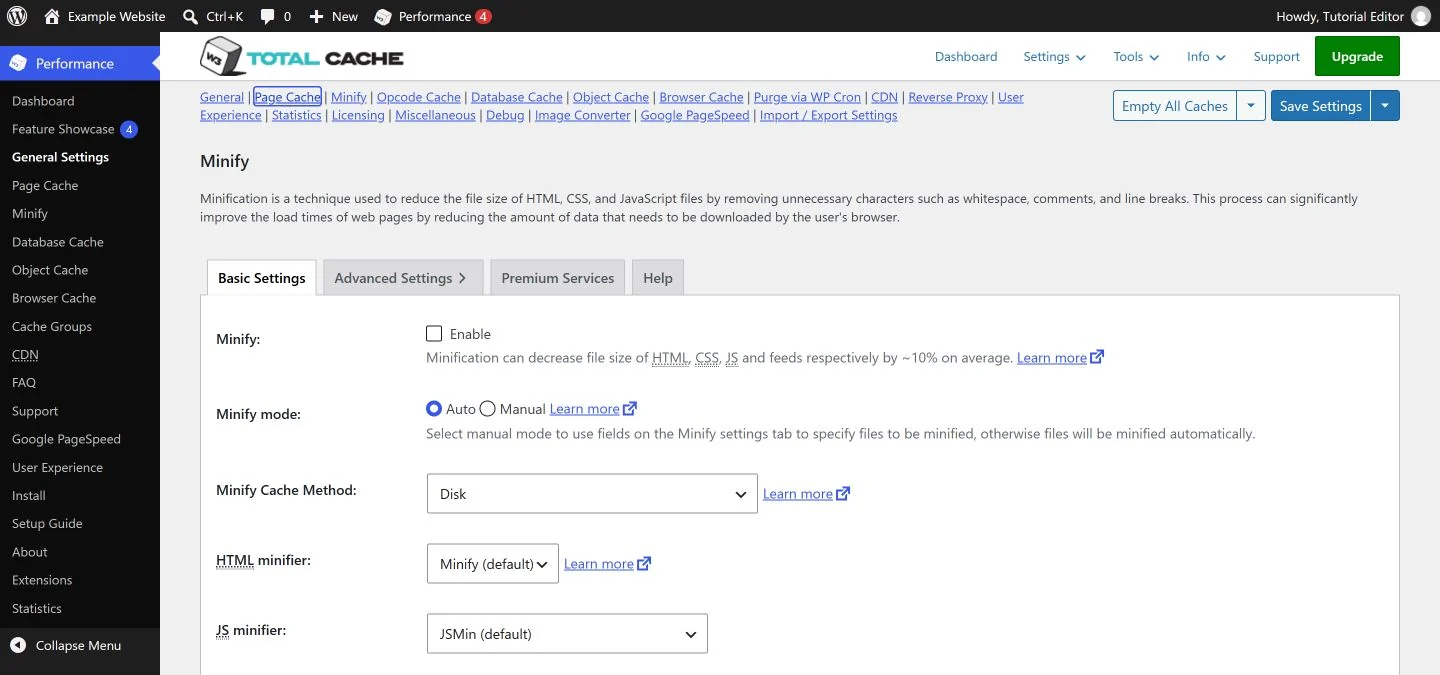 W3 Total Cache 2.11.0, General Settings. This example shows the Minify controls; each setting needs separate compatibility and behavior checks. It is not a universal configuration for every website. View larger screenshot
Related help
- Clear the right cache after a website change
- Find the correct document root before an AI tool uploads files
- Update a WordPress plugin with a clear rollback plan
- Preserve new orders and inquiries when planning a restore
- Send a website support request with useful troubleshooting details
Official references
Content and official-source review: November 1, 2026. Menu names, features and permissions depend on your installed version and service.
