
Quick answer
Create a business mailbox in cPanel under Email Accounts, then verify delivery and configure each device using that mailbox's secure settings.
Applies to
Interactive Online customers with an email-enabled cPanel service and permission to manage the selected domain. Mail hosted at Google Workspace, Microsoft 365, or another provider is managed there. Tools vary by service; the presence of a website does not by itself establish hosted-email entitlement.
Steps
- Open your Interactive Online Client Area, choose Services > My Services, open the correct hosting service, and select Log in to cPanel.
- Open Email > Email Accounts and select Create. Choose the intended domain when the account has more than one.
- Enter the mailbox name and a strong unique password, or select Generate to use the password generator. Save the credential in your password manager. Set an appropriate storage allocation within the hosting account limits.
- Review the complete email address and select Create. Use Check Email for webmail or open Manage > Connect Devices for this mailbox's client settings.
cPanel screenshots
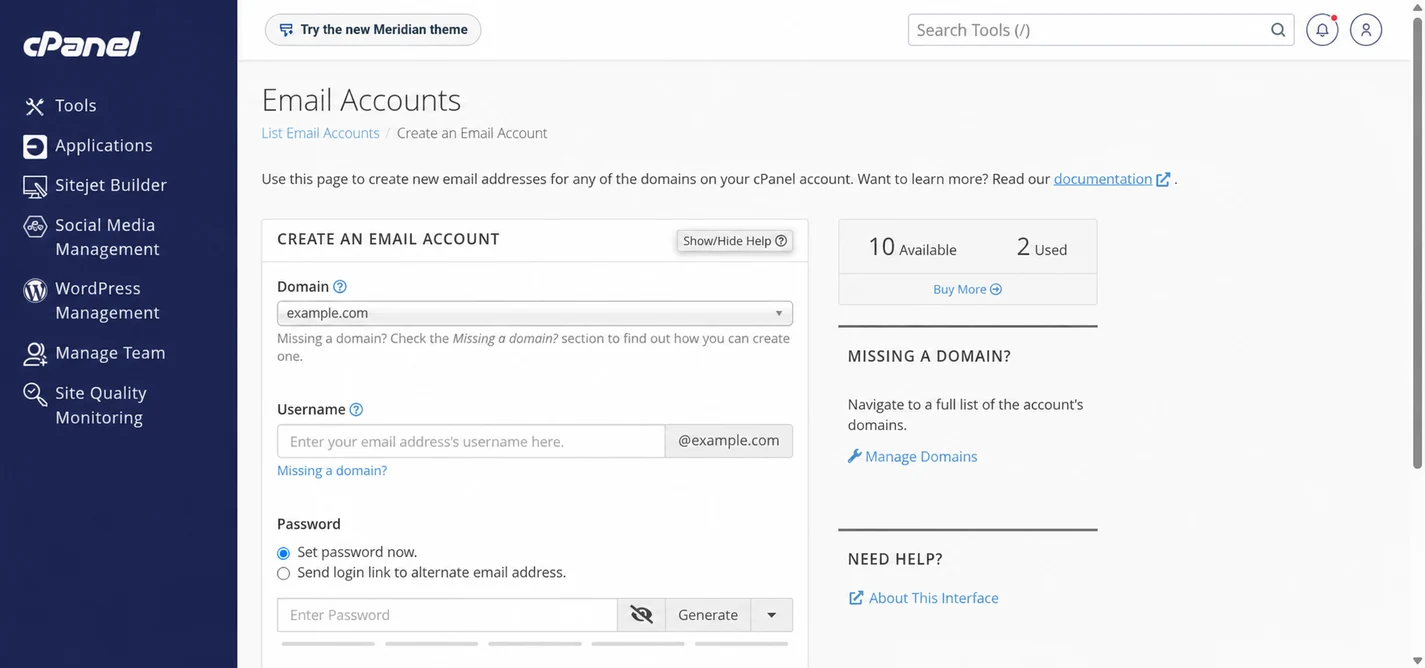
Anonymized example based on the captured cPanel interface. The domain and capacity figures are sample data, not your service allowance. Check the available capacity shown in your own account before creating a mailbox.
Verify the result
Confirm that the exact address appears under Email Accounts. Send a message to an address you control and reply from that address. Check both messages; mailbox creation alone does not confirm that the domain's MX records deliver mail here.
Troubleshooting and support
If Email Accounts or Create is missing, check your service's email entitlement and permissions. If Available is 0 or cPanel reports an account limit, ask support to confirm the mailbox allowance on your service before changing the plan. If creation succeeds but incoming mail is missing, check the domain's real mail provider, MX records and local/remote routing. Contact support from the account that owns the service. Include the domain, the exact tool, the time and time zone, the last successful step, and a redacted error or screenshot. Leave passwords, private keys, cookies, and complete configuration files out of the ticket.
If the new address exists but incoming messages are missing, use the missing-email troubleshooting guide. Verify the intended mail provider and delivery path before creating another mailbox or changing device settings.
Related help
- Find the correct secure IMAP and SMTP settings for your mailbox
- Use webmail to separate a mailbox problem from a device problem
- Set local or remote email routing for the correct mail provider
- Collect useful evidence when an email message is missing
Official references
Content and source review: November 1, 2026. Interface labels depend on the cPanel version and tools enabled for your service.
Symptom guidance and related-help review: November 1, 2026.
