
Quick answer
Use Joomla's article editor for ordinary text changes. An article's content, alias, category, access level, language, and publication dates serve different purposes, so a copy edit should not casually change all of them.
Prepare a Joomla article revision with AI
Rewrite the supplied public article introduction in clear American English. Keep the title, factual claims, links, alias, category, language, access level, and publication state. Return only the proposed body text and identify any fact that needs confirmation.
Before you start
Confirm the Joomla version and correct Administrator site. Record the article ID, public URL, current text, category, alias, language, access level, and any page-builder extension responsible for its layout.
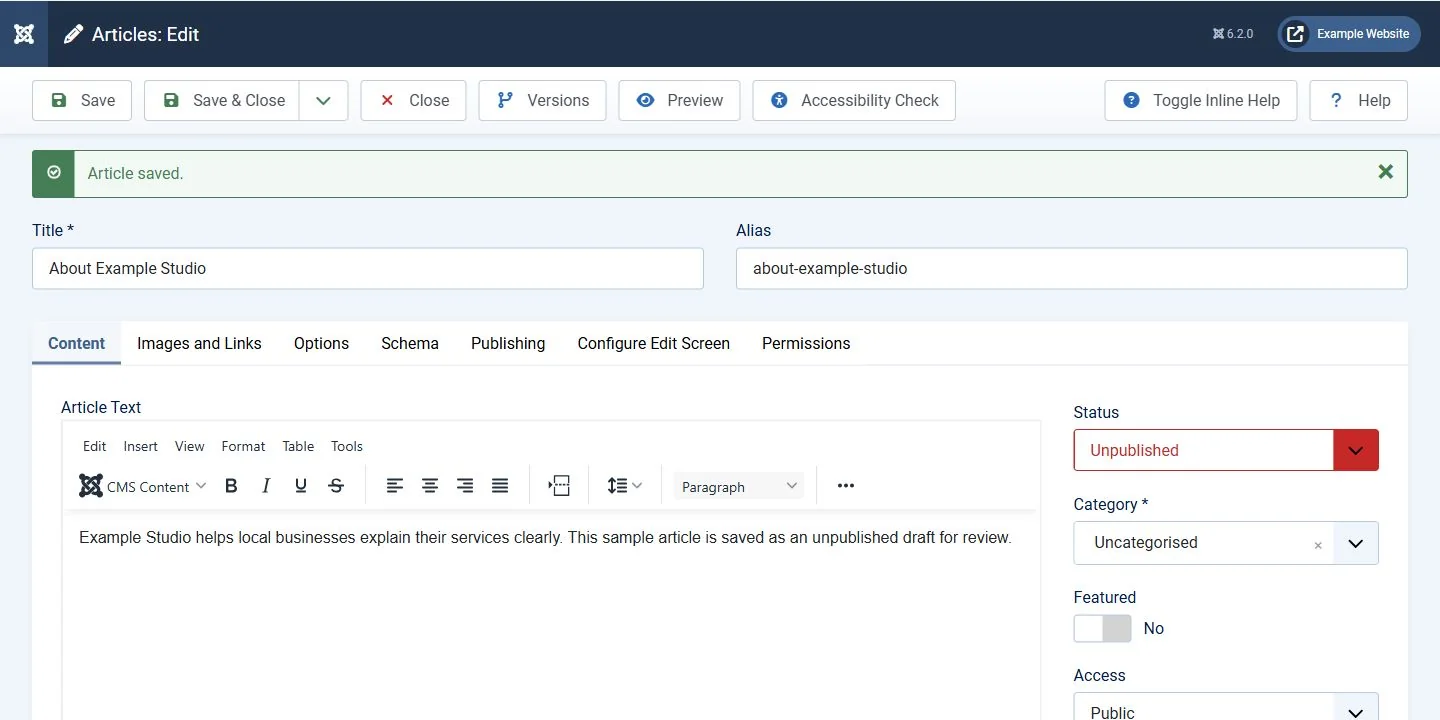 Joomla 6.2.0 sample article. Keep the alias, category, access and publication state while revising the body. Open the image for a larger view.
Steps
- Open Content, Articles and locate the exact article by ID or title. If the visible page is supplied by a component or builder instead, identify that source before editing unrelated article content.
- Make the approved text or image change in the configured editor. Preserve heading structure, meaningful links, and alternative text. Keep the alias and category unless a URL change is part of the plan.
- Review the Publishing, access, and language settings. Save or preview through the available controls, then inspect the correct menu route on the front end.
- Check desktop and phone layouts and confirm that the article remains visible only to its intended audience. Save the final article ID and tested URL.
Verify the result
The intended article should show the approved change without breaking its menu link or exposing restricted material. Verify surrounding modules because their display can depend on the active menu item.
Use Versions for a saved article change
When article history is enabled, add a Version Note before saving a checkpoint. Open Versions, inspect the dated entries, select the intended copy and choose Restore. Check the restored body, alias, category, access, publication state and images. Restore can bring back several saved fields together.
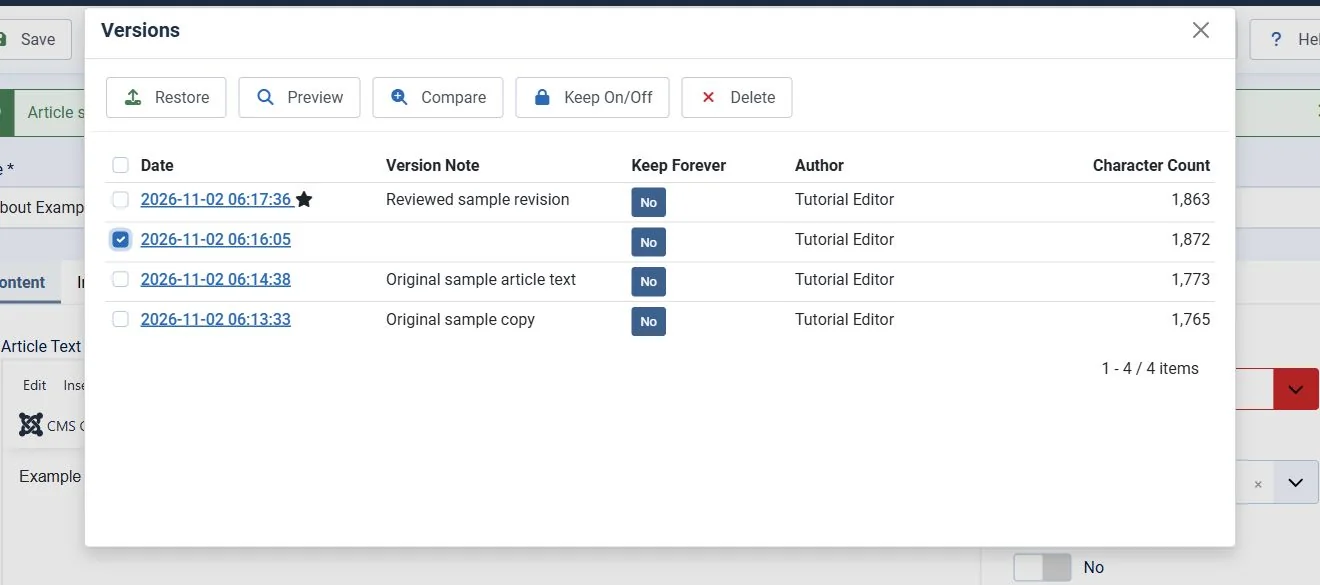 Choose the intended saved version. Restoring a version can also restore its saved image and other article fields. Open the image for a larger view.
Troubleshooting and recovery
If the page does not change, check article identity, language association, component/builder ownership, template override, and cache. Restore the recorded content or a supported version rather than replacing the full database.
Related help
- Add a Joomla menu link to the correct article
- Create and verify a Joomla backup before changing extensions
- Update a Joomla extension with compatibility and rollback checks
Official references
Reviewed October 31, 2026. Interfaces, vendor availability, and account features can change. Check your current account before making changes.
AI editing guidance and linked workflow documentation reviewed November 2, 2026. Existing video and earlier review history retained.
Joomla 6.2.0 interface and sample article-version restoration checked November 2, 2026.
