
Quick answer
A Joomla menu item defines a route and can affect the page layout and module assignment. Publishing an article does not necessarily place it in the visible navigation.
Use AI without changing the wrong route
Ask the AI to explain the menu item type and target article before changing it. Keep the established alias and parent when you only need a label correction. Confirm language and access level as well as the visible label.
Before you start
Identify the intended menu, article ID, language, parent item, and access audience. Record the existing menu structure and any module that displays it. Test a navigation change on staging first.
Steps
- Open Menus, select the intended menu, and choose New. Beside Menu Item Type, choose Select > Articles > Single Article. Beside Select Article, choose Select and select the exact existing article by title and ID.
- Enter a clear navigation label, preserve or deliberately choose its alias, and set the correct parent item. Review publication status, language, and access level.
- Check whether the menu display module is assigned to the relevant pages and template position. A saved menu item can exist without appearing in a module.
- Open the front end and follow the link as an ordinary visitor. Test desktop and mobile navigation, the active state, breadcrumbs, and any modules whose visibility depends on the new route.
Check the saved target
After Menu item saved, confirm that Menu Item Type remains Single Article, Select Article shows the intended title, and the generated Link identifies the correct article ID. Confirm the menu, parent item and publication state separately. An unpublished menu item or article should remain unavailable to ordinary visitors.
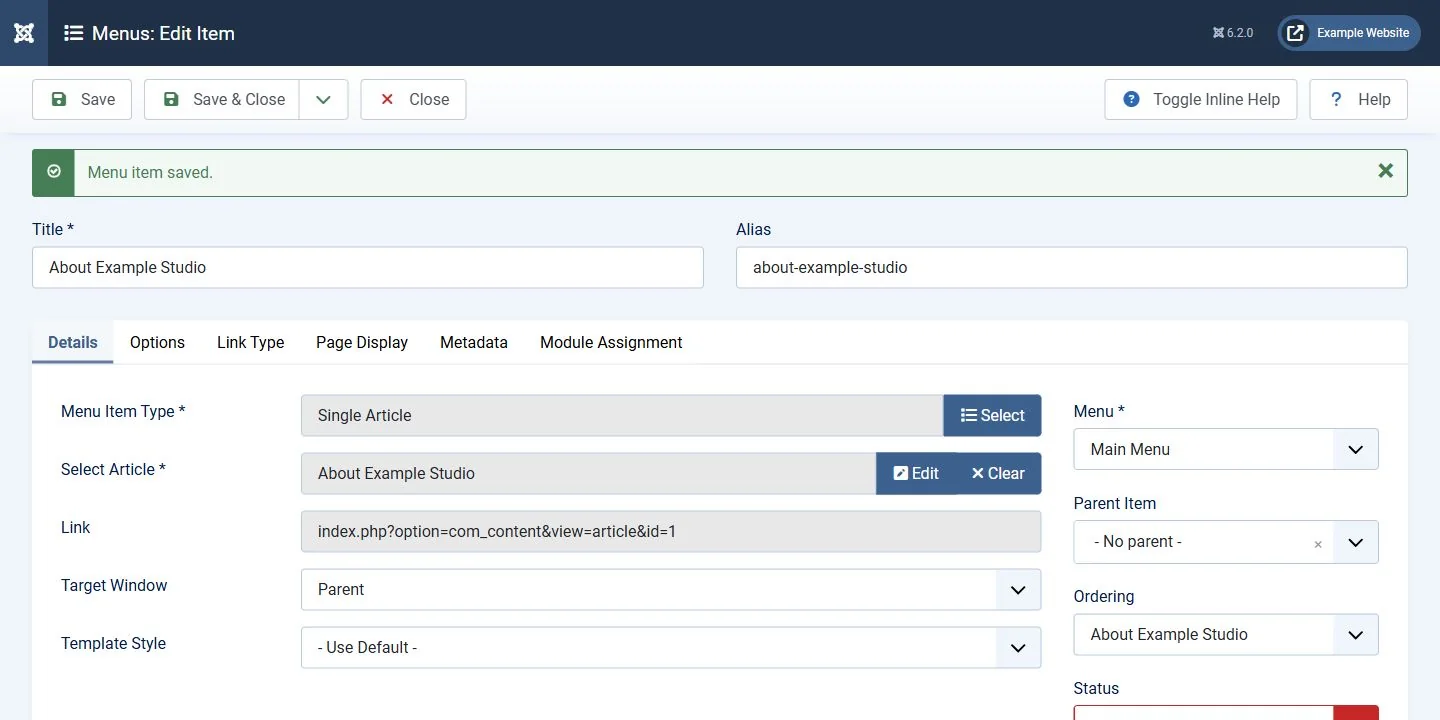 A Single Article menu item should select the intended article and preserve the planned alias, parent item, language and publication state. Open the image for a larger view.
Verify the result
The visible link should open the intended article with the expected URL and layout. Confirm that restricted or language-specific items are not exposed to the wrong audience.
Troubleshooting and recovery
If the link is missing, check menu/module assignment, publication, access, language, and cache. If you need to undo the change, revert the new item and its specific assignments rather than deleting the article.
Related help
- Edit a Joomla article while preserving its URL and publication settings
- Create and verify a Joomla backup before changing extensions
- Plan redirects when website page addresses change
Official references
Reviewed October 31, 2026. Interfaces, vendor availability, and account features can change. Check your current account before making changes.
AI editing guidance and linked workflow documentation reviewed November 2, 2026. Existing video and earlier review history retained.
Joomla 6.2.0 interface and sample Single Article menu target checked November 2, 2026.
