
Quick answer
Open Nova from the hosting service that includes it, describe the pages and business details you need, review the generated website, then publish to the intended domain when your plan permits it. The first draft needs your review before visitors see it.
Applies to
Interactive Online hosting services that include Nova through cPanel Meridian. This guide follows the hosting-account launch route. A regular cPanel account or a ChatGPT or Claude subscription does not automatically include the builder. Nova projects, exported HTML, WordPress, and Joomla have different editing workflows.
Open Nova through cPanel Meridian
- Open the Interactive Online Client Area, choose the hosting service for this website, and use Log in to cPanel.
- In Meridian, open Websites and choose Manage for the intended domain.
- On Overview, find Website Builder. For a saved draft, choose Continue with Nova, then select the existing project from Recent projects.
- Match the project and domain before editing. A domain with an empty hosting folder can still have a saved Nova draft. Check the builder section before starting another setup.
If the account opens Jupiter or has no Nova control, confirm that you selected the eligible service. Interface and builder availability follow the hosting package.
Prepare your website brief
Gather your own logo, approved photographs, business description, real contact details, services, and the pages visitors need. Decide what the main button should do. Leave reviews, certifications, prices, and business claims out unless you can verify them.
Create a five-page website for Example Garden Services: Home, Services, About, FAQs, and Contact. Use the attached approved logo and photographs. Write clear American English. The main action is Request a quote. Use sample contact details until I approve the real ones. Do not invent reviews, awards, prices, or certifications. Explain how the contact form will send messages before connecting it.
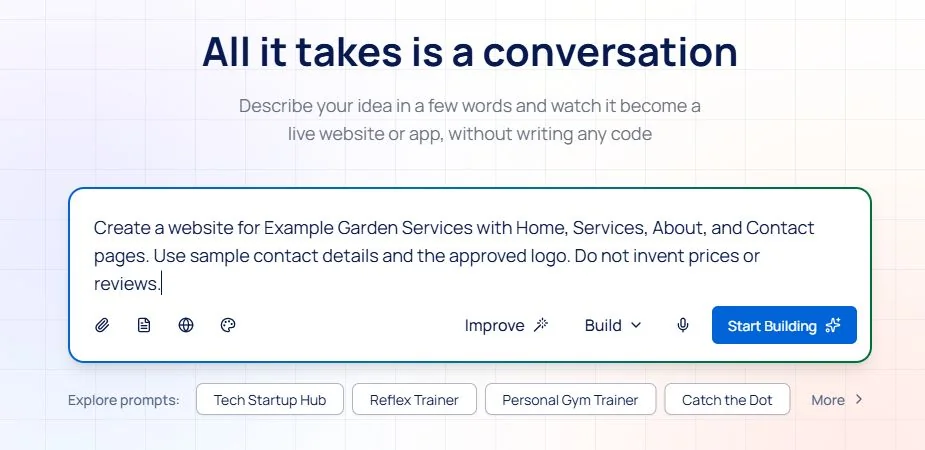 Nova opened through an eligible Meridian hosting account. The sample brief was entered without creating another project. Open the image for a larger view.
Build and review the first draft
- Open your Interactive Online Client Area and select the service attached to the intended website. Use its available website-builder launch control. If your service uses Meridian, its website management area may expose Websites > Manage > Website Builder. If Nova is absent, confirm your entitlement before buying credits or changing products.
- Start the intended Nova project. Enter your brief in the prompt box and attach only approved public assets. The current prompt control labels the building mode Build. Choose Start Building when the brief is ready. If a planning mode is available, use it to review the proposed structure before generation. Mode labels can differ between releases.
- Review every page in the preview. Replace sample contact information and unfinished text with approved facts. Request one specific revision at a time and check the result before continuing.
- Check desktop, tablet, and phone previews. Open navigation links, expand menus, and inspect long headings and image crops. A screenshot of a page does not test those controls.
- Confirm that each form has a working destination. Use a harmless sample submission and verify receipt where you expect it. An attractive form with no delivery service is unfinished.
Publish and verify
- Confirm that the domain is yours, the intended service allows publishing, and publication will not replace an existing live website unexpectedly. Publishing requires an Interactive Online hosting plan with web publishing enabled. A Free preview account can show a Publish button and still be unable to publish.
- Choose Publish, select the intended domain, and confirm Publish. If the domain is missing, inspect the available domain controls or ask support to confirm the correct service. Preserve existing email DNS records.
- Wait for publication to finish. Open the HTTPS address in a private browser window. Verify all pages, images, navigation, and the form delivery path. The builder preview and public website are separate checks.
Publish opens an upgrade prompt
If Publish opens Unlock more possibilities and lists web publishing, the current plan has not published the website. Close the prompt to keep reviewing the draft, or use the provider's plan information to confirm a suitable hosting plan. Do not interpret a working preview link as a public deployment.
If something goes wrong
- No builder or Publish option: check the selected service and its actual entitlement. Extra AI credits do not add a missing hosting feature.
- Wrong or unfinished content: revise the Nova project before publishing again. Keep each request limited to the page or section you intend.
- Domain does not load: confirm registration, nameservers, website records, and the publication destination. Avoid changing email records to fix a website-only issue.
- Form appears to submit but no message arrives: verify the configured backend and delivery service rather than repeatedly redesigning the form.
When to contact support
Contact Interactive Online if the hosting destination or available account tools are unclear. Include the affected URL, service name, time and time zone, exact error, and a screenshot with private details replaced by sample data. Keep passwords, private keys, API tokens, customer records, and billing information out of the message. Your external AI provider handles its subscription and usage limits.
Related help
- Edit and republish an existing Nova project
- Understand separate Nova and external AI allowances
- Find where DNS is managed
- Verify website form delivery
Official references
Reviewed November 2, 2026. Meridian launch, sample brief and Free publishing restriction checked. A paid deployment was not run.
