
Quick answer
For WordPress content tasks, a dedicated WordPress user and supported REST API integration can be narrower than full hosting access. The integration can only perform actions supported by the API and the user's capabilities. It is not a replacement for every theme, plugin, database, or server task.
REST operations, WordPress abilities, and MCP
A REST endpoint supports specific CMS operations. An ability declares a permitted operation; the official MCP Adapter exposes opted-in abilities to compatible clients. The adapter is a transport/connection layer, not a complete editor by itself. Confirm that the required content or builder operation is present before enabling it.
- Use the existing WordPress editor
- Choose a WordPress coding workflow
- Check Elementor-specific MCP compatibility
Reference: official MCP Adapter requirements. WordPress.com also documents a separate MCP route for self-hosted Jetpack-connected sites; review its tools and account scope before connecting.
WordPress Settings > Connectors has a different job
On supported WordPress versions, Settings > Connectors lists providers such as Anthropic, Google, and OpenAI. A provider plugin and its API credentials let compatible WordPress features make AI requests. This screen does not automatically expose the website to a ChatGPT or Claude chat, and it does not install the MCP Adapter or add page-editing abilities.
An external assistant needs a separately reviewed connection, authentication, and supported tools. Keep provider credentials out of prompts, screenshots, page content, repositories, and support tickets. Confirm who pays for API usage before configuring a provider. If plugin installation is restricted, ask the site administrator to use the approved deployment process.
Reference: WordPress Settings Connectors documentation.
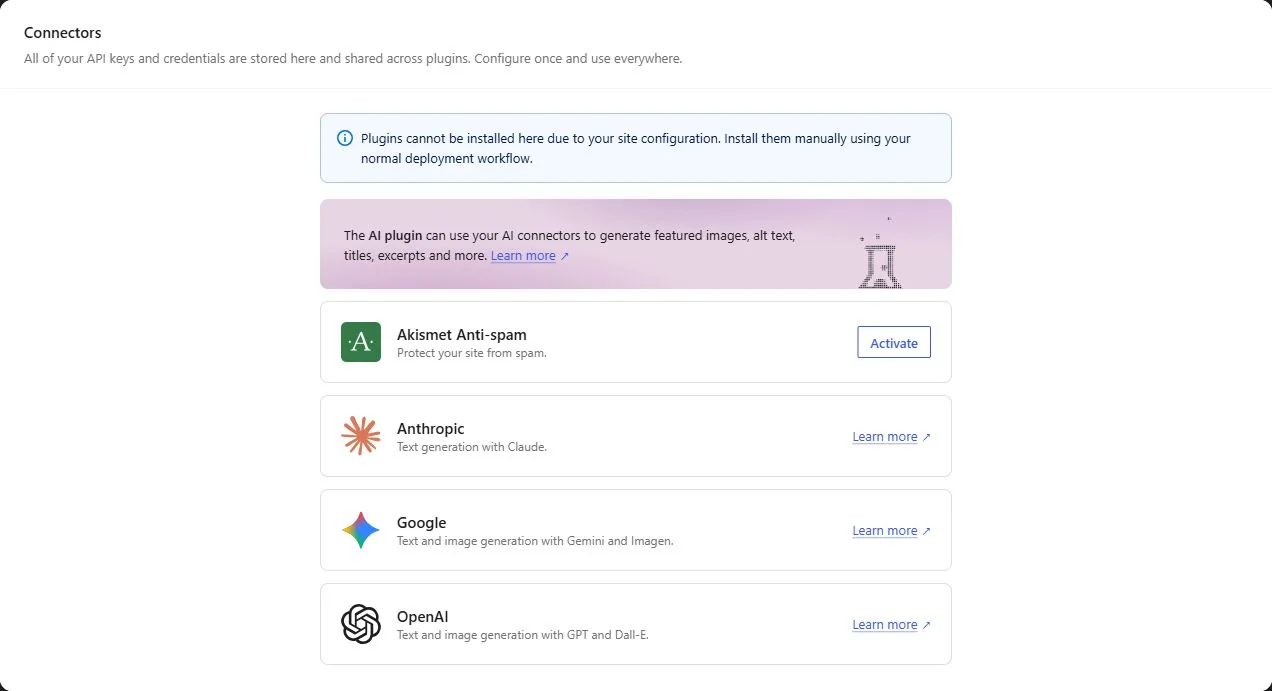 AI provider connections support compatible WordPress plugins. They do not by themselves authorize an ordinary ChatGPT or Claude chat to edit the site. Open the image for a larger view.
Before you start
Use HTTPS, an authorized WordPress account, and a reviewed integration. Confirm the WordPress version, available endpoints, user role, security-plugin restrictions, and whether the task is limited to content or requires code deployment.
What to do
- Create a dedicated user with the minimum role that can perform the required task. Avoid sharing the site owner's main administrator login.
- Use the integration's supported authentication flow. Where application passwords are appropriate, create a separately named credential and store it securely outside prompts and public files.
- Test reading an allowed resource, then create or update a draft on staging. Confirm that media, categories, and links behave as expected.
- Review the draft and authorize publication through the intended workflow. Revoke the credential when the integration is no longer needed.
Check the result
Check the post status, author, content, revision history, and public page. Verify that the user cannot perform unrelated administration beyond its role.
If something does not work
For authentication failures, confirm HTTPS, account capability, endpoint availability, and security-plugin policy. Do not disable authentication or give an unnecessarily powerful role to bypass a narrow integration problem.
Related help
- Use a WordPress application password for an approved integration
- Test one WordPress REST API content update before automating a site
- Give a WordPress content editor an individual account
Official references
Reviewed October 31, 2026. Interfaces, vendor availability, and account features can change. Check your current account before making changes.
AI editing guidance and linked workflow documentation reviewed November 2, 2026. Existing video and earlier review history retained.
Interface reviewed November 2, 2026. WordPress 7.1.4 Connectors interface checked. No provider key or remote editing authorization was added.
