
Quick answer
Use ChatGPT or Claude to prepare a specific text or image change, then apply it in the WordPress editor that owns the page. A reviewed authenticated connector can apply supported changes for you, but it must preserve the site's blocks or page-builder data.
Applies to
Interactive Online-hosted WordPress sites where you have permission to edit the intended content. The block editor, Site Editor, classic editor, Divi, and Elementor store or manage layouts differently. This guide does not grant a plugin, theme, hosting, or external AI subscription.
Identify the page and editor
- Open the live page and record its URL. In WordPress, open Pages > All Pages and locate the matching page. Blog entries normally belong under Posts > All Posts.
- Check the available editing controls. Use the existing builder if the page offers Divi or Elementor editing. For a block theme, distinguish the page's content from a shared template in Appearance > Editor.
- Keep a page revision or recoverable backup. Copy the approved source wording, record the image currently used, and identify the page ID. A shared header, navigation, or template needs a wider preview than one page.
Rewrite only the Services page introduction below for a small garden-care business. Keep the verified services and service area. Use 70 to 90 words of plain American English and preserve the existing call to action. Do not invent prices, testimonials, qualifications, or guarantees. Return the replacement text separately from your notes.
Apply the change yourself
- Review the AI's draft for factual accuracy. Paste the approved wording into the intended paragraph, heading, or builder module. Preserve its links and formatting.
- For an image, use the editor's image replacement control and choose or upload the approved asset in the Media Library. Provide alternative text that describes the image's purpose. Check the crop, caption, and link destination separately.
- Choose Preview where available. Check desktop and phone layouts, the main button, and surrounding content. If you are changing a shared template, inspect another page using it.
- In the current block editor, choose Save only when approved. Older or different editors may label the action Update or Publish. Check the page's Status and Slug in the Page settings before saving. Open the public URL in a private window and verify the exact text, image, and any affected link.
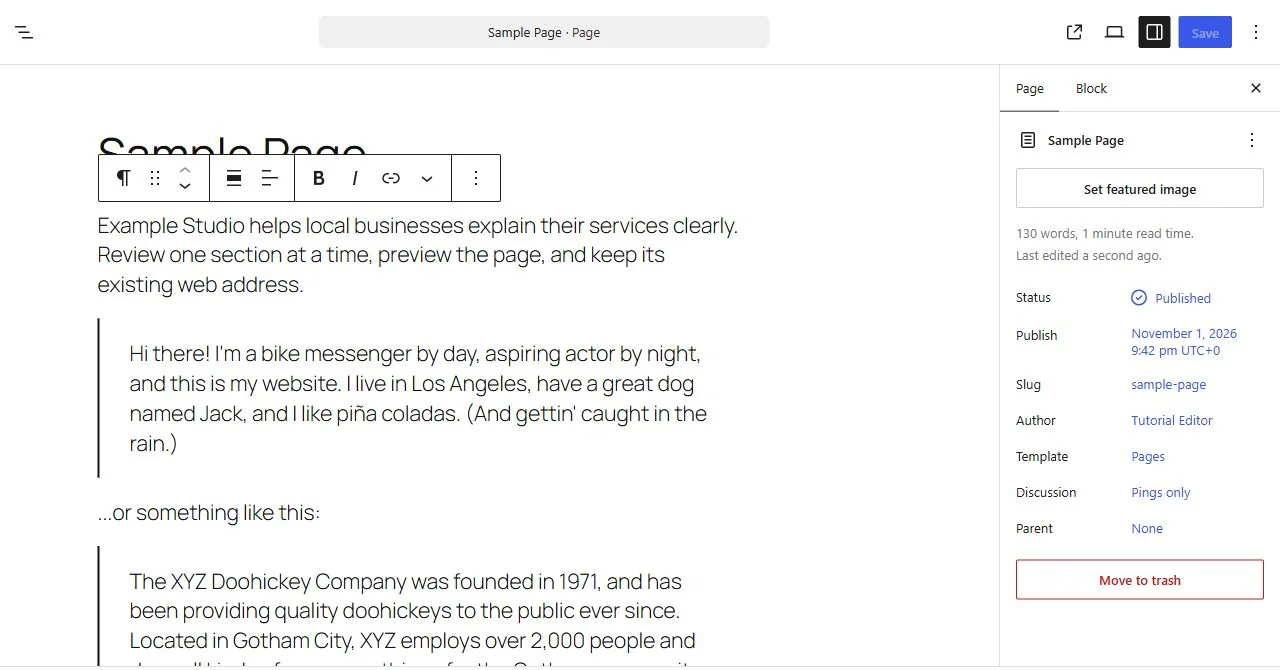 WordPress 7.1.4 block editor. Review the text, page status and slug before saving an approved change. Open the image for a larger view.
Check the saved page and undo a small change
- Confirm the editor reports Page updated or its equivalent, then open the recorded page URL and read the exact revised text.
- Keep the editor open while checking a small revision. If the revision needs to be reversed and Undo is available, use it, review the restored text, and choose Save again.
- For an earlier saved change, use the page's available revisions or the builder's history. Check the page ID, slug, status and visible result after recovery.
Settings > Connectors configures AI providers for compatible WordPress plugins. It does not by itself connect an ordinary ChatGPT or Claude chat to this page. Use the WordPress access guide to evaluate an authenticated editing connection.
If you want the AI to apply it
Use only an owner-approved connector that supports the actual editor and requested action. Start by asking it to identify the site, page ID, editor, status, and available tools without changing anything. Review a proposed diff, test one draft, and keep publishing as a separate decision. An integration that reads posts does not necessarily edit Divi or Elementor layouts.
Troubleshooting and recovery
- The edit screen is empty or full of shortcodes: stop before saving and identify the missing or wrong builder.
- The public page differs from the preview: confirm the correct page or template, publication status, and relevant cache.
- A connector returns 401 or 403: check the connection, user permissions, application-password or OAuth availability, and site security restrictions. Do not disable protection broadly.
- You need to undo the edit: inspect the page's revisions or the builder's supported history. Restore only the intended revision and verify the public page. A whole database restore can overwrite newer inquiries or orders.
When to contact support
Contact Interactive Online if the hosting destination or available account tools are unclear. Include the affected URL, service name, time and time zone, exact error, and a screenshot with private details replaced by sample data. Keep passwords, private keys, API tokens, customer records, and billing information out of the message. Your external AI provider handles its subscription and usage limits.
Related help
- Find the correct WordPress editor
- Replace an image in WordPress
- Restore one WordPress page revision
- Understand WordPress API permissions
- Use a coding agent for WordPress code changes
Official references
Reviewed November 2, 2026. WordPress 7.1.4 block editor: sample text saved, rendered, and restored exactly to the pre-test content.
