
Quick Answer
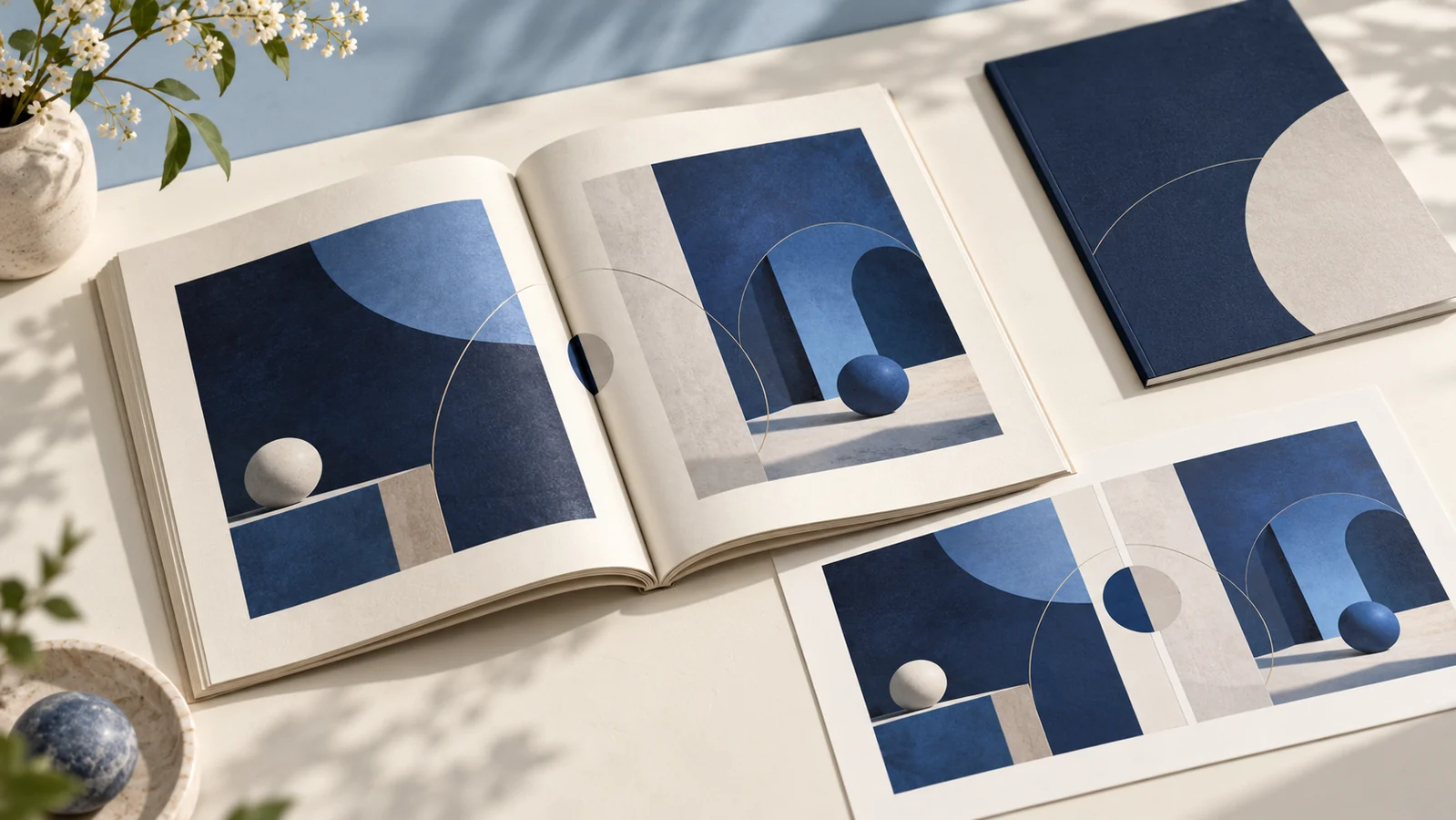
A catalog mockup should show the correct cover and page spread in the correct orientation. Map each visible page to its source artwork, inspect what disappears into the center gutter and label any hidden material. Use a printer’s proof for production decisions about binding, dimensions and trim.
An open-catalog scene can look convincing while displaying two unrelated pages as a spread. Before choosing shadows or background texture, decide which part of the catalog the reviewer needs to see.
Start with a simple page plan
Identify the front cover, back cover and each required interior spread. Keep the artwork version and page identifiers with the scene. The source layout, the mockup’s editable regions and the exported image may use different names.
Check whether the template expects one full-spread image or separate left and right pages. Inspect the actual file instead of assuming that two visible pages always have independent editing areas.
| Scene area | Mapping to verify |
|---|---|
| Closed front cover | Use the approved front artwork and its intended reading direction. Keep the back cover out of this source slot. |
| Left interior page | Identify the specific page or left half of the selected spread, including the direction toward the binding. |
| Right interior page | Confirm it belongs beside the selected left page in the approved sequence. |
| Center gutter | Record lettering, product detail or artwork concealed by the depicted fold or curve. |
Inspect the replacement after the scene updates
Adobe’s Smart Object replacement instructions explain that replacement retains transformations. A retained transform can still place the wrong page in an otherwise realistic scene.
Check orientation, proportions and the complete visible edge of each page after updating the artwork. Compare the output with the source page plan. Repeated artwork can be a mistaken shared source, while a cropped heading may be hidden by the scene rather than missing from the original.
Review one spread with a deliberate problem
Consider a hypothetical catalog spread with an overview on the left and product details on the right. A product identifier sits close to the center. In the curved mockup, that identifier is partly hidden.
Record the visibility issue and include a flat reference of the same spread. Have the content and design owners decide how the source layout should change. Do not move the identifier only in the presentation and leave the actual catalog artwork untouched.
This is an illustrative inspection task. It does not establish that we edited a particular supplier template or produced a printed catalog.
Separate presentation from production approval
A simulated page curve cannot verify how the chosen paper and binding will behave. Confirm the real dimensions, bleed, trim, binding allowance and required proof with the responsible print supplier. Keep any unresolved production requirement visible in the handoff.
Inspect the actual template’s editability, dependencies and permission before acquiring it. A free label or a polished preview does not establish the permitted use or which source files may be shared.
Deliver a traceable review package
Include the scene image, matching flat spread, artwork version, source mapping and remaining questions. State which visual decision was approved and which production checks remain.
Our InDesign catalog guide covers whether real product records fit the layout. An online lookbook needs a useful browsing sequence and working product links. For website presentations, the flat and perspective view guide explains another review format.
Key Takeaways
- Map covers and spreads to exact source artwork.
- Verify left/right order and reading direction.
- Expose important content hidden by the center gutter.
- Keep presentation approval separate from printer proof.
Frequently Asked Questions
Can the mockup prove that text will clear the binding?
No. It can reveal a visibility concern, while the actual layout and supplier’s binding requirements need their own proof.
Why include a flat spread with the scene?
It lets the reviewer inspect content that curvature, perspective and shadows obscure, using the same approved artwork version.