
Quick answer
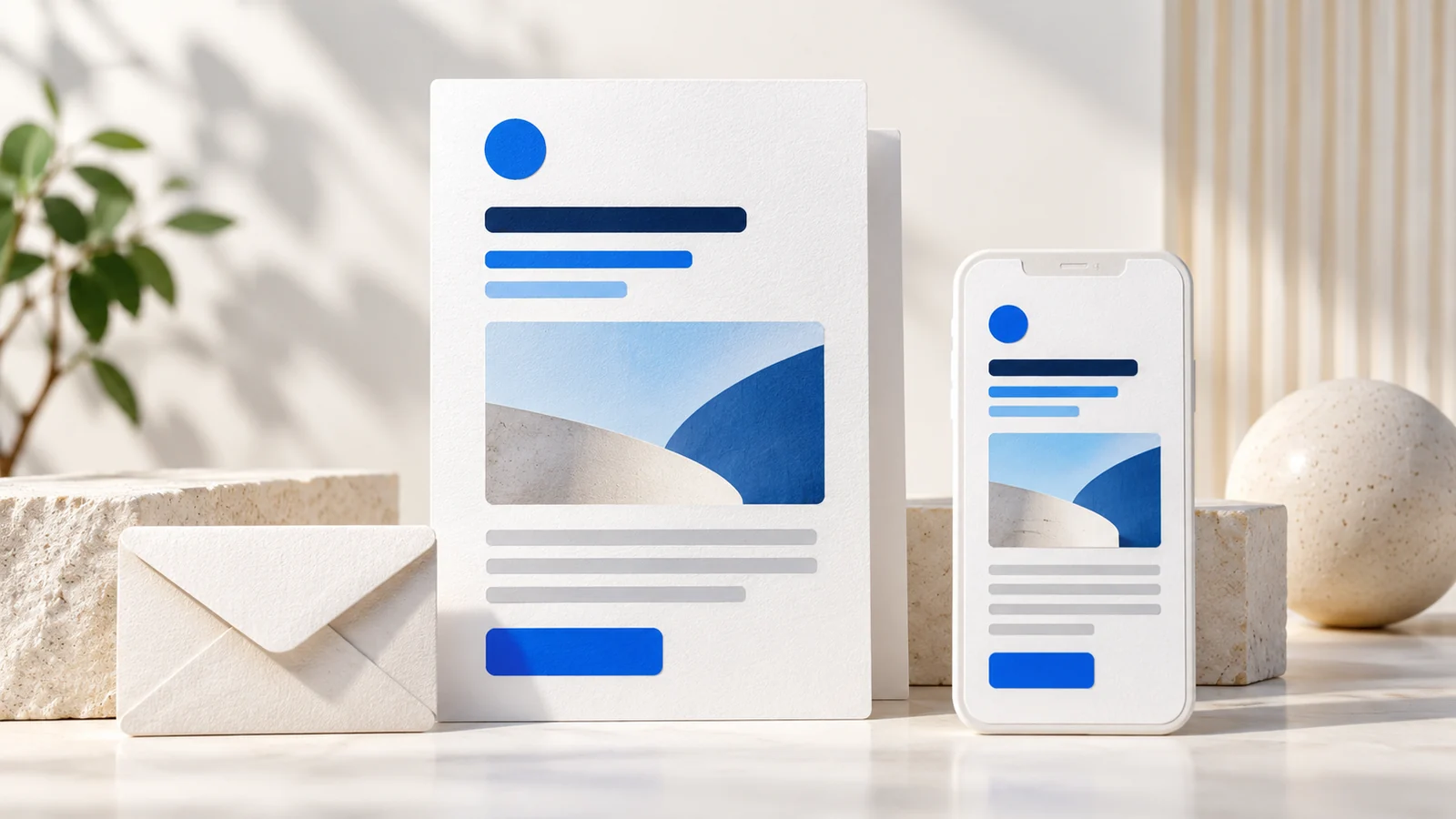
A useful visual email header identifies the sender, explains the message and gives the reader a clear starting point. Design it for a small screen and test the actual email. Technical message headers, which record information about the message and its delivery, need a separate review; a recognizable logo cannot establish that an email is authentic.
Separate visual design from message headers
People use “email header” for two different things. A designer may mean the logo, opening headline and image at the top of the email body. A support technician may mean fields such as the sender, subject and routing information in the message source.
Google’s full-header instructions explain how to inspect that source in Gmail using Show original. Review sensitive message information privately with the appropriate person. For sender authentication, use our separate SPF, DKIM and DMARC guide.
Choose a layout that fits the message
The following are illustrative design patterns, not screenshots of client campaigns or evidence of measured results.
A short editorial newsletter
Use a small logo or publication name, a specific issue title and a short introduction. A newsletter about a WordPress update could lead with what changed and who needs to read it. Large decorative navigation can push that explanation out of the opening view.
A product announcement
Pair a clear product image with the approved product name and one sentence explaining its purpose. Keep essential information in readable text so the message still has meaning when the picture does not appear. Link to the product or announcement page that continues the explanation.
A service or appointment message
Lead with the service name, relevant date and required action. Keep operational details easy to find. A decorative promotion should not make someone search for their appointment information or contact instructions.
Review the header on a phone
A wide desktop design may reduce the logo and headline to an unreadable size on a phone. Check the reading order, padding, text size and linked controls rather than shrinking the entire layout into one image.
Mailchimp’s mobile editing and testing guidance explains its builder-specific previews and recommends sending a test email to a device. It also notes that appearance can vary with the device and email application. Use the controls available in your actual sending platform.
Use a small, repeatable test
- Read the sender name, subject and opening content together.
- Check that the message makes sense without the main image.
- Open the test in the email applications your audience uses.
- Follow the main link on a phone.
- Confirm that the destination has the same offer, date and next action.
For a promotional message, measure the action relevant to the offer and interpret email reporting with the sending platform’s limitations in mind. A prettier opening alone does not establish better deliverability or more suitable inquiries.
If the linked website page needs work, a website audit can review its mobile experience, content and form journey alongside the campaign’s stated goal.
Key takeaways
- Visual headers and technical message headers serve different purposes.
- Choose the opening layout around the reader’s task.
- Keep essential information readable without the main image.
- Test the email and the linked website page on a phone.
Frequently asked questions
Does every email need a large header image?
No. A short newsletter or operational message may work better with a small brand identifier and a clear text heading. Use imagery when it helps explain the message.
Can an email logo prove the sender is trustworthy?
No. A visual brand mark can be copied. Sender authentication and suspicious-message review require separate technical evidence.
Is a builder preview enough?
Send a test and inspect it in relevant email applications and on a phone. A preview cannot reproduce every recipient’s settings or application behavior.