
Quick Answer
If a Google Ads report seems missing after a navigation change, identify the intended report and account scope before recreating it. Check whether it is a saved custom report, a predefined view or a dashboard, then use the relevant current help route. A new table with a similar name may not reproduce the original report.
Keep the January 2024 move in context
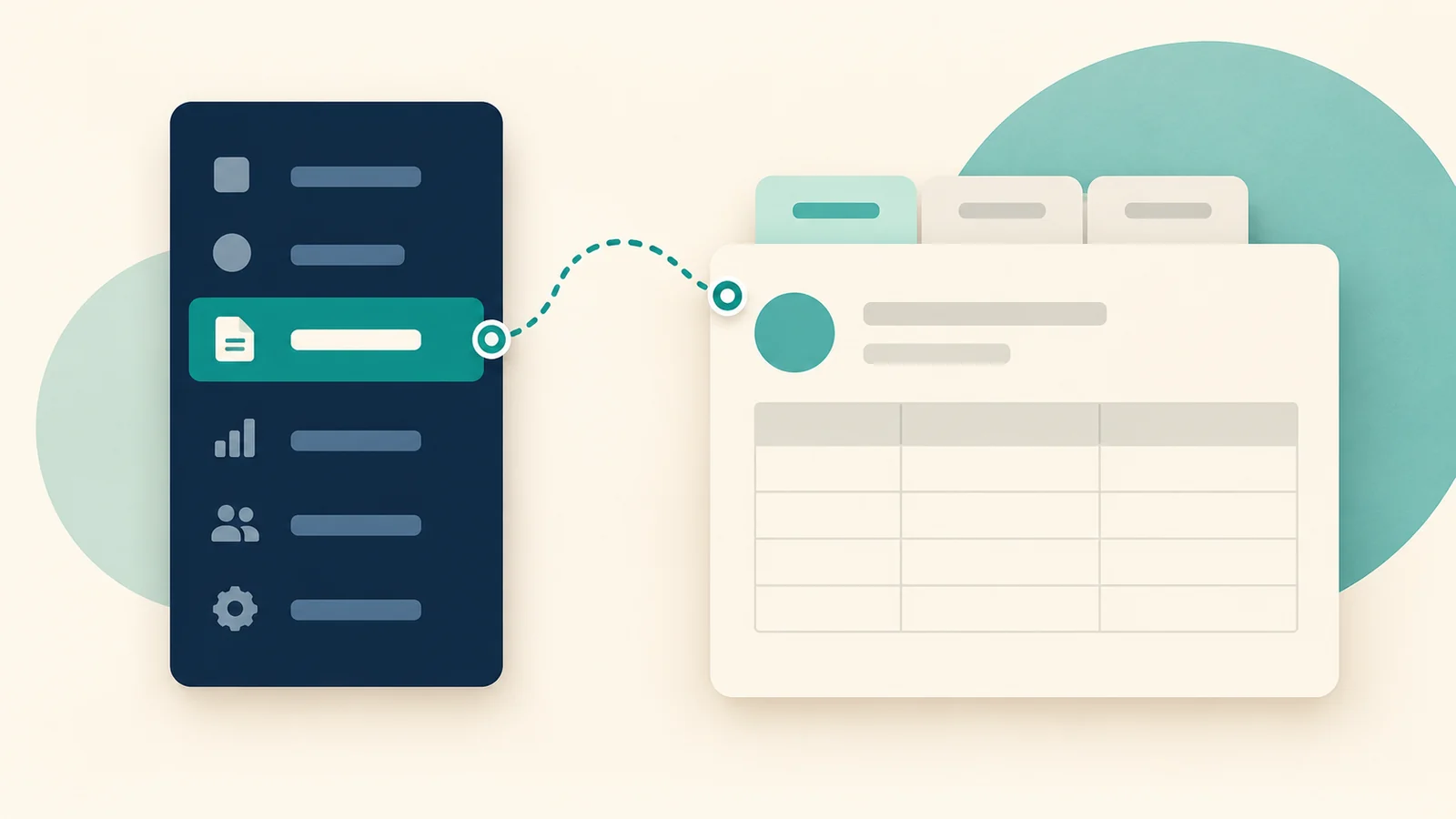
The January 25, 2024 report described a limited interface rollout that grouped reporting under Insights and reports. Its beta status and screenshots belong to that period. They do not establish the exact navigation of every account today.
Start in the authorized account and inspect the reporting options it actually shows. A missing old menu label does not by itself establish that a saved report or its underlying data was deleted.
Identify the report you need to recover
- Report type
- Distinguish a saved custom report, predefined reporting view and dashboard. Record the known title or prior bookmark.
- Account scope
- Check the selected client account or manager context and the accounts the report includes.
- Report structure
- Keep the intended dimensions, metrics, filters and date selection with the saved-report identity.
- Access
- If the report still cannot be located, have the responsible account administrator check the appropriate access and ownership context before replacing it.
Use the documented report workflow
Google’s Report Editor guide describes custom tables and charts, dimensions, metrics, filters and saving. It also explains selecting accounts for manager-account reports. Use the guide matching the actual reporting task rather than assuming every report is a custom table.
When editing an existing report, choose deliberately between saving that report and saving a separate copy. Avoid replacing a shared reporting definition while trying to recover an old navigation route.
Check identity before accepting a substitute
In a hypothetical case, an old bookmark was used from a manager account, but the newly opened view is scoped to one client. The title alone cannot establish that these are the same report. Check the included accounts and saved definition before comparing totals or building a replacement.
Record the verified location and scope once the correct report is found. If a replacement is necessary, have its owner approve the intended definition and keep the difference from the old report visible. This example does not describe an inspected account or a verified platform defect.
Our GA4 help guide covers preparing a question for a different analytics product. The small-business PPC guide addresses campaign planning, while the Yelp consultation record covers a support call’s decisions and follow-up.
Key Takeaways
- Distinguish a navigation change from a missing saved report.
- Check report type, identity and account scope.
- Approve a replacement definition before accepting different output.
Frequently Asked Questions
Does the old menu path apply to every account today?
The 2024 announcement described a limited rollout. Inspect the actual account and current task-specific guidance.
Is a similarly named table the same report?
Check its saved identity, included accounts, dimensions, metrics and filters before treating it as equivalent.
Should I overwrite a saved report to locate it?
Locate and inspect it first. Have the report owner approve definition changes and decide whether to save a separate copy.